
Tried Out YubiOn FIDO Logon’s New Feature: “Enterprise Authenticator” Management Function
On February 6, 2025, YubiOn FIDO Logon released an update introducing a new feature: Enterprise Authenticator Management.
In this article, we’ll explain what this feature is and what new capabilities it offers, based on actual operation.
What is the New Feature?
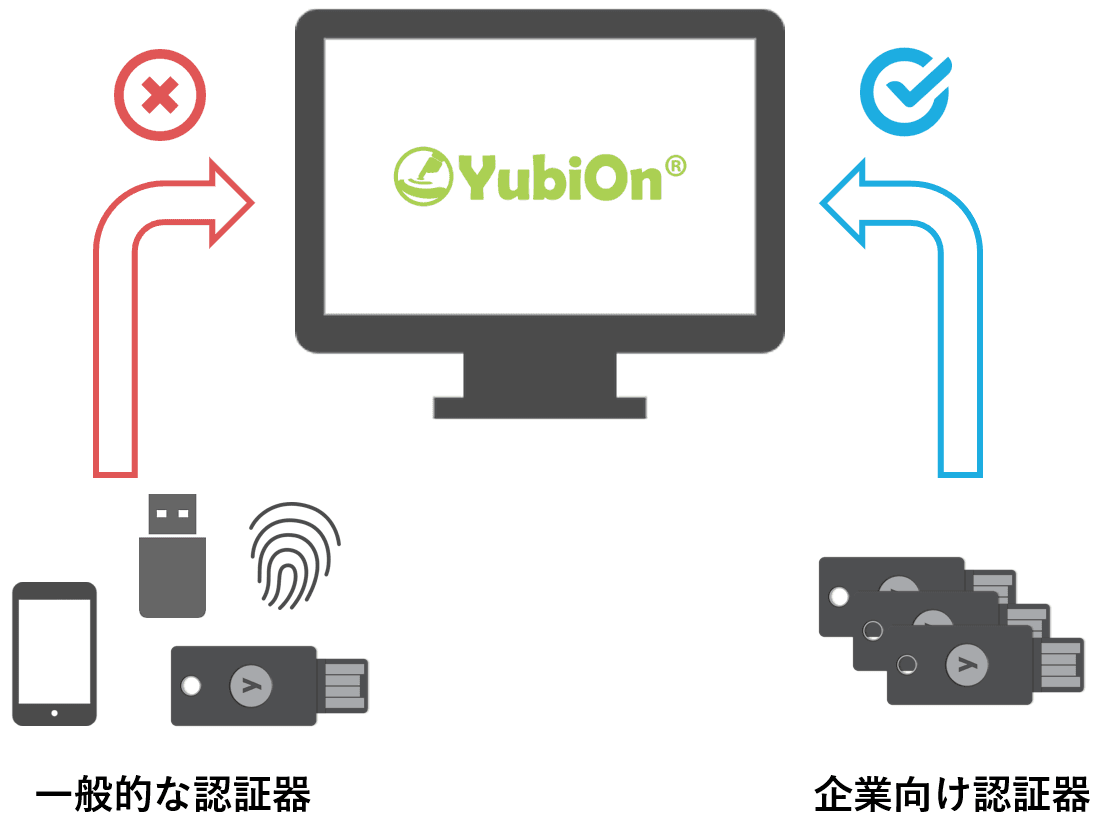
The newly added feature supports a mechanism called FIDO Enterprise Attestation.
Normally, passkeys (FIDO authentication) cannot identify which authenticator an end user is using. As a result, administrators cannot determine which authenticators the end users own or have registered.
However, for some companies, simply protecting accounts with passkeys is not enough. They may want to ensure that only authenticators provided by the company are being used.
Enterprise Attestation provides the ability to uniquely identify authenticators.
By supporting this feature, YubiOn FIDO Logon can now identify the authenticators being used.
In other words, it is now possible to prevent users from registering personal authenticators or smartphones, and to allow registration only of authenticators pre-approved by administrators. This enables companies to manage which authenticators are used within their organization.
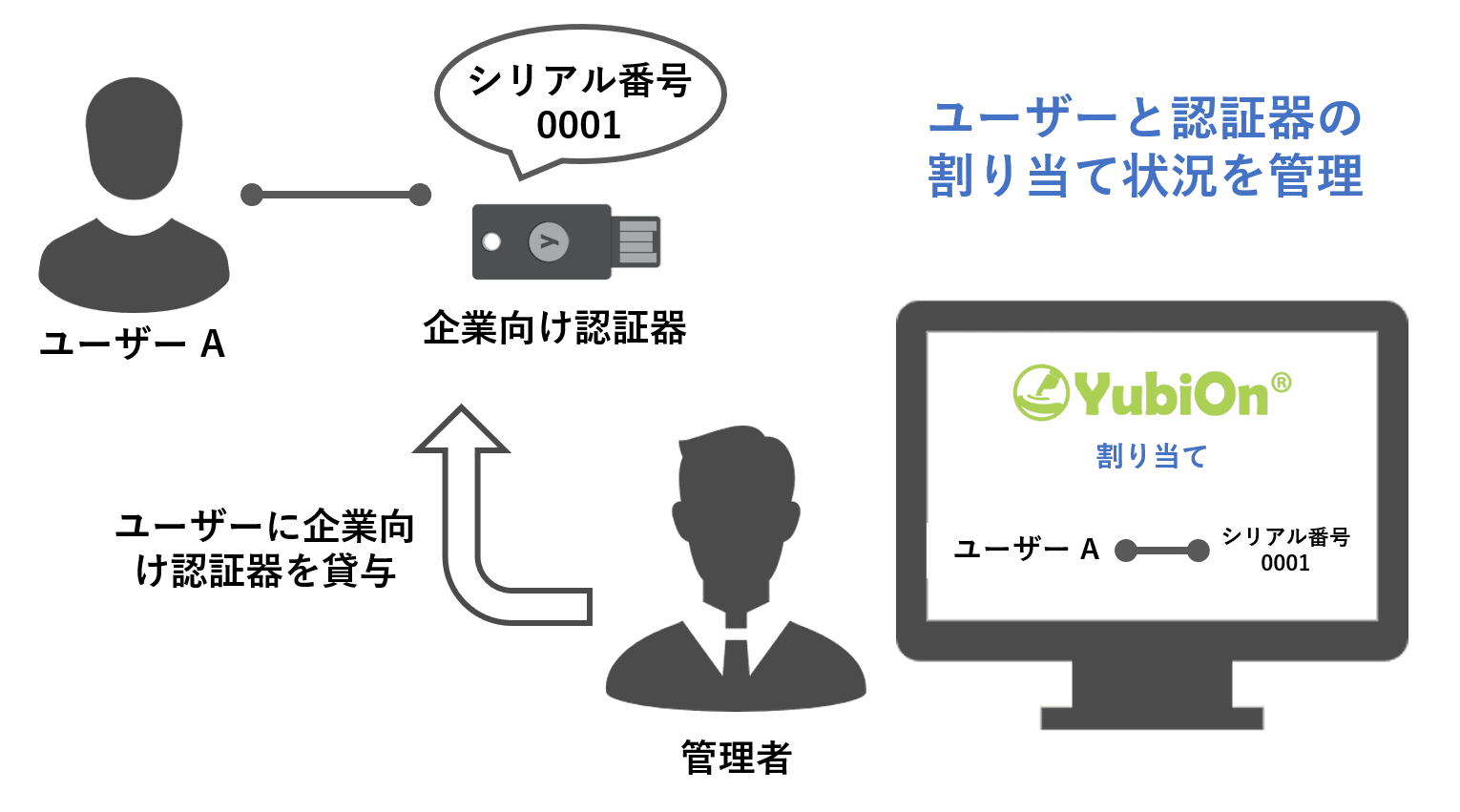
This new feature is quite management-oriented, so it’s clear that it is aimed at companies seeking stricter security and device management.
What is an Enterprise Authenticator?
In YubiOn FIDO Logon, an authenticator that supports Enterprise Attestation is referred to as an Enterprise Authenticator.
As of February 2025, authenticators that support Enterprise Attestation are rare worldwide. Among the products we handle, only Yubico’s YubiKey supports this feature.
Additionally, enterprise authenticators require specific information to be written at the time of shipment by the vendor to enable Enterprise Attestation. Therefore, they cannot be obtained through normal purchasing channels.
To acquire them, you need to contact Yubico directly. If you are considering implementation, please reach out to us. We will coordinate with Yubico, and after discussions, the authenticators will be shipped.
In this article, we will use an Enterprise Attestation-enabled YubiKey obtained from Yubico for testing.
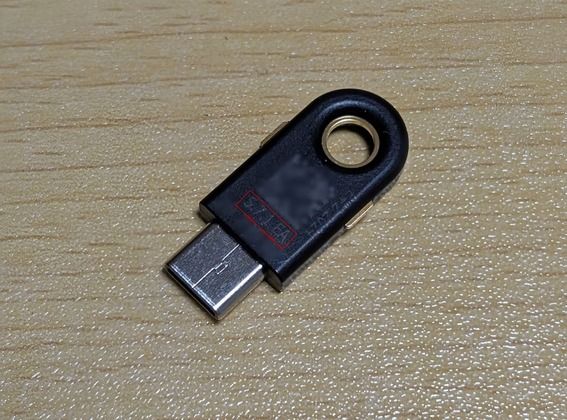
The model used is YubiKey 5C. On the back (with the serial number hidden for privacy), you can see the letters “EA,” which indicate Enterprise Attestation support. Standard YubiKey 5C devices do not have this marking, so it appears you can visually distinguish keys that support Enterprise Attestation.
Try It Out
Now, let’s actually test what can be done using an enterprise authenticator.
What We'll Test
Here’s what we’ll try:
As an administrator (management website operations):
- Apply restrictions so that end users can only use enterprise authenticators.
- Assume that the enterprise authenticator has already been obtained.
- Ensure that only the YubiKey pre-approved by the administrator can be registered for PC logon.
As an end user (PC operations):
- Confirm that PC logon is possible only with an enterprise authenticator.
- Assume that the initial setup, such as installing YubiOn FIDO Logon, is complete.
- Register the authenticator using the method introduced in a previous blog post for first-time logon:
*"*Tried a New Method for Implementing YubiOn FIDO Logon"
https://www.yubion.com/post/yubion-fido-logon-new-deployment-method
Now, let’s get started.
■Administrator Operations
1. Enable enterprise authenticator in customer settings
First, configure YubiOn FIDO Logon to use enterprise authenticators.
Log in to the YubiOn FIDO Logon management website and open the customer management screen.
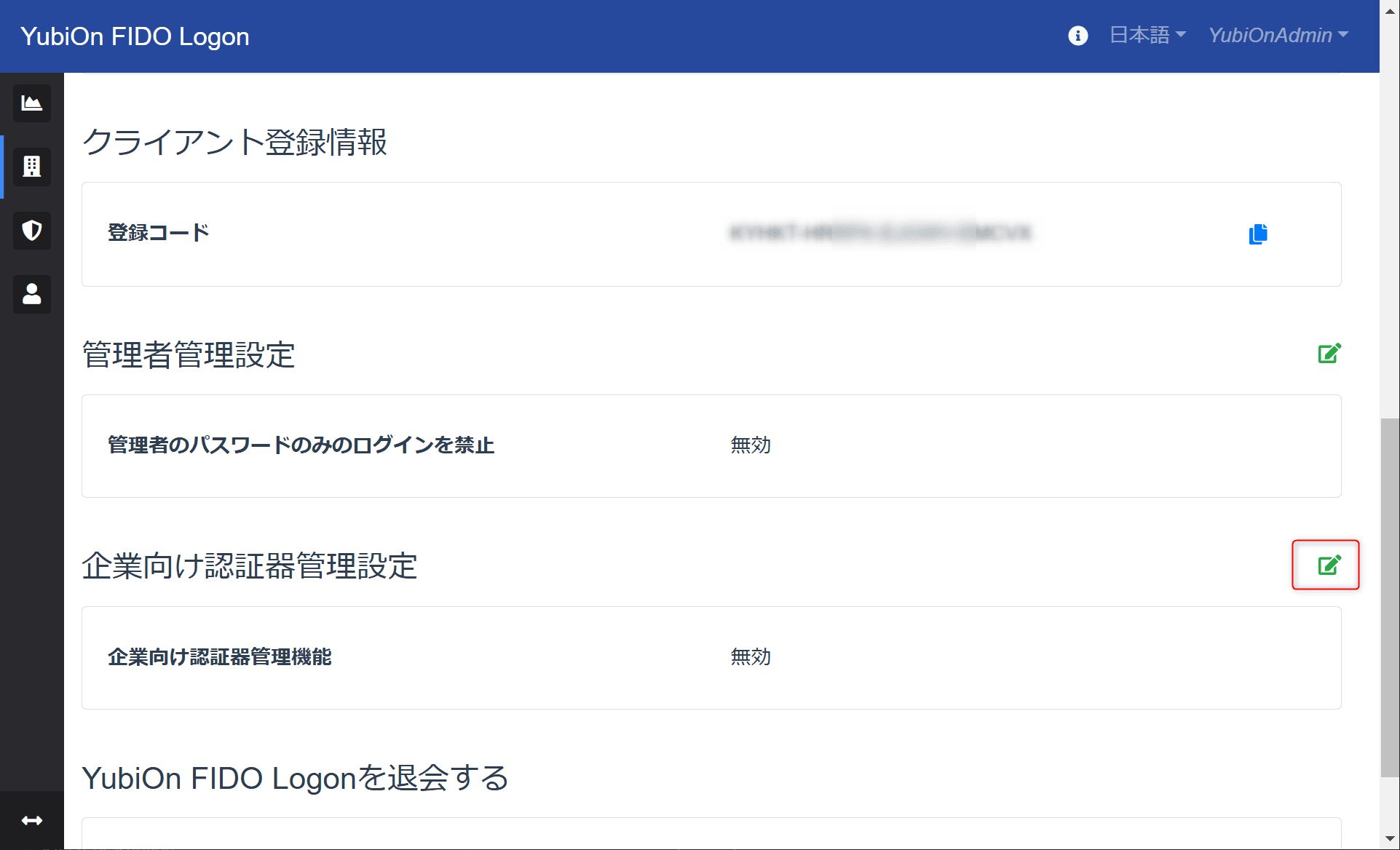
Click the edit icon on the right side of Enterprise Authenticator Management Settings.
When you change the Enterprise Authenticator Management Functions setting to Enabled, each item becomes editable.
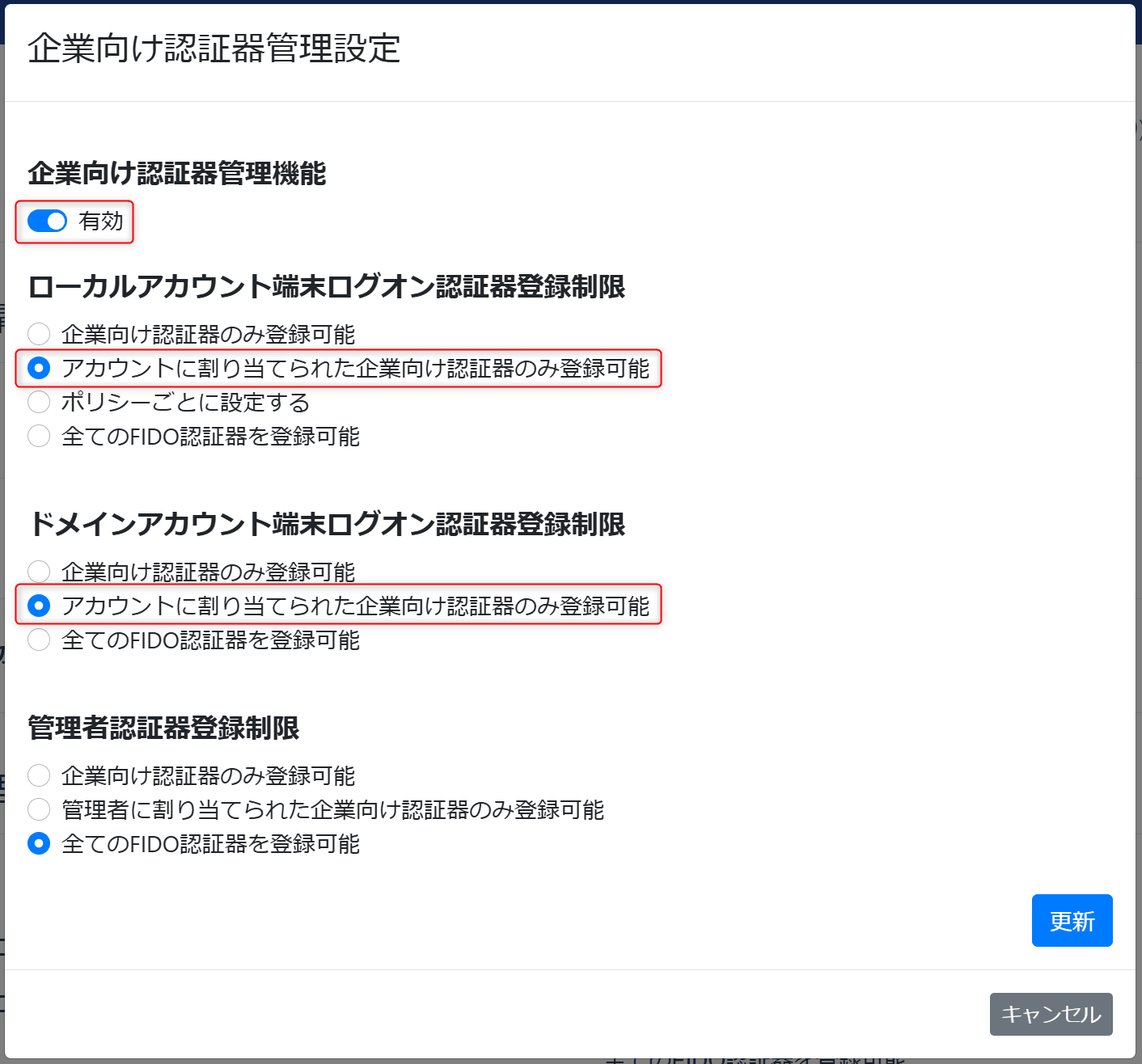
Of the three items, the top two are for restricting the authenticators used for PC logon to enterprise authenticators. The settings differ depending on whether the target Windows account is a local account or a domain account.
This time, we want to test the restriction method where the administrator pre-assigns authenticators, so we’ll set both options to “Only enterprise authenticators assigned for the account can be registered.”
By the way, the setting “Only enterprise authenticators can be registered” allows registration of any enterprise authenticator even without prior assignment. This option is useful when you want to prevent the use of general authenticators.
The bottom item is for restricting the authenticators used when administrators log in to the management website. We’ll skip this setting for now and leave it as “All FIDO authenticators can be registered” so there are no restrictions.
2. Assign enterprise authenticators to accounts
At this point, due to the previous settings, authenticators that can be registered are restricted, so end users cannot register any authenticator yet.
Next, we’ll assign which authenticator each end-user account can use. Once assigned, the end user will be able to register that authenticator.
There are two ways to assign authenticators: from the Account Management screen or from Enterprise Authenticator Management. This time, we’ll do it from the Enterprise Authenticator Management screen.
Open the Enterprise Authenticator Management screen from the menu. A list of available enterprise authenticators will be displayed.
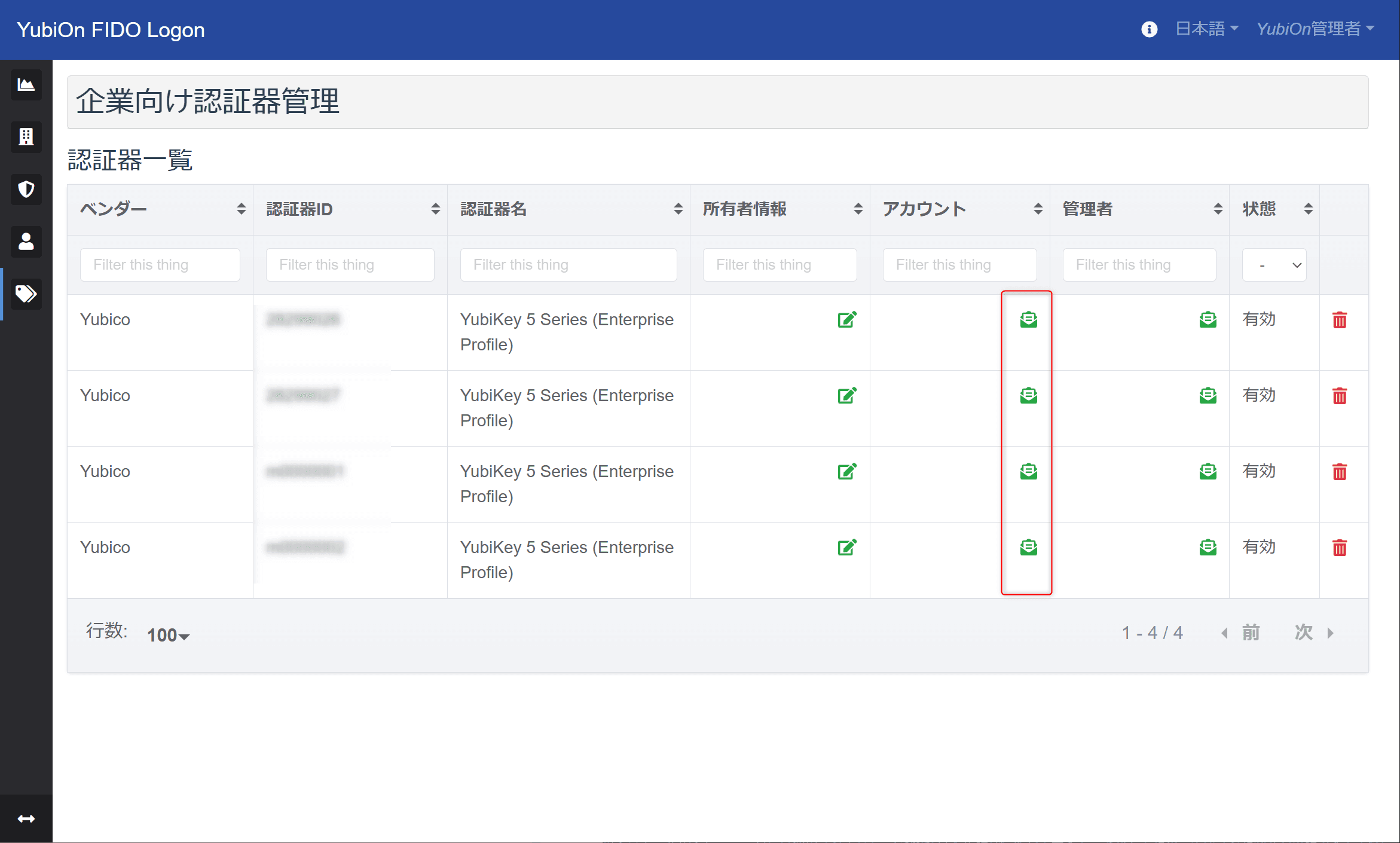
The authenticator information will be registered on our side when you purchase the enterprise authenticator, so there is no need for you to register it yourself.
Authenticators can be identified by their Authenticator ID.
For YubiKey, the Authenticator ID is the serial number.
The serial number is engraved on the back of the YubiKey, so it can be visually confirmed.
Select the Authenticator ID you want to assign and click the edit icon in the Account field.
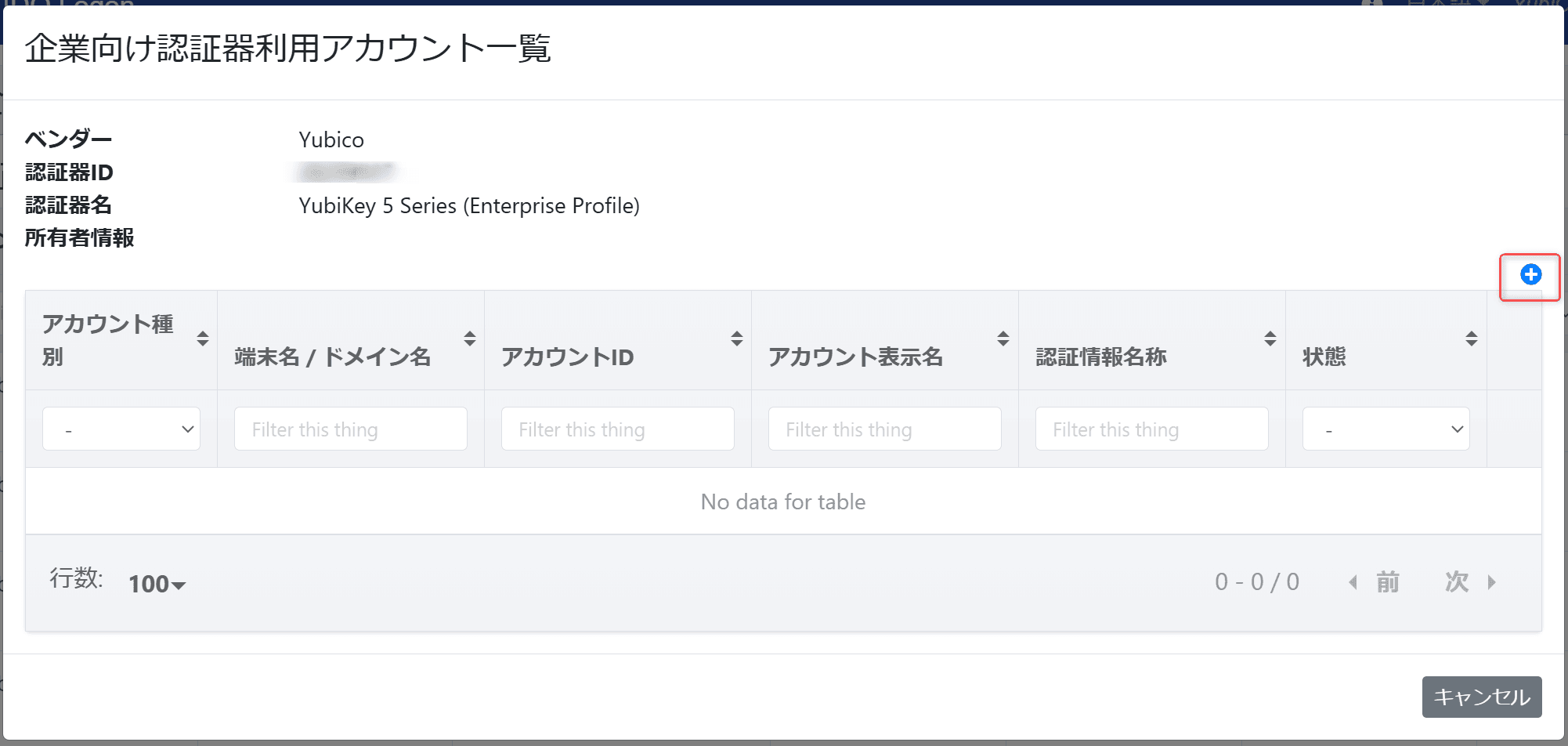
A modal window titled Accounts with Enterprise Authenticator registered will appear. Click the + icon in the upper right corner.
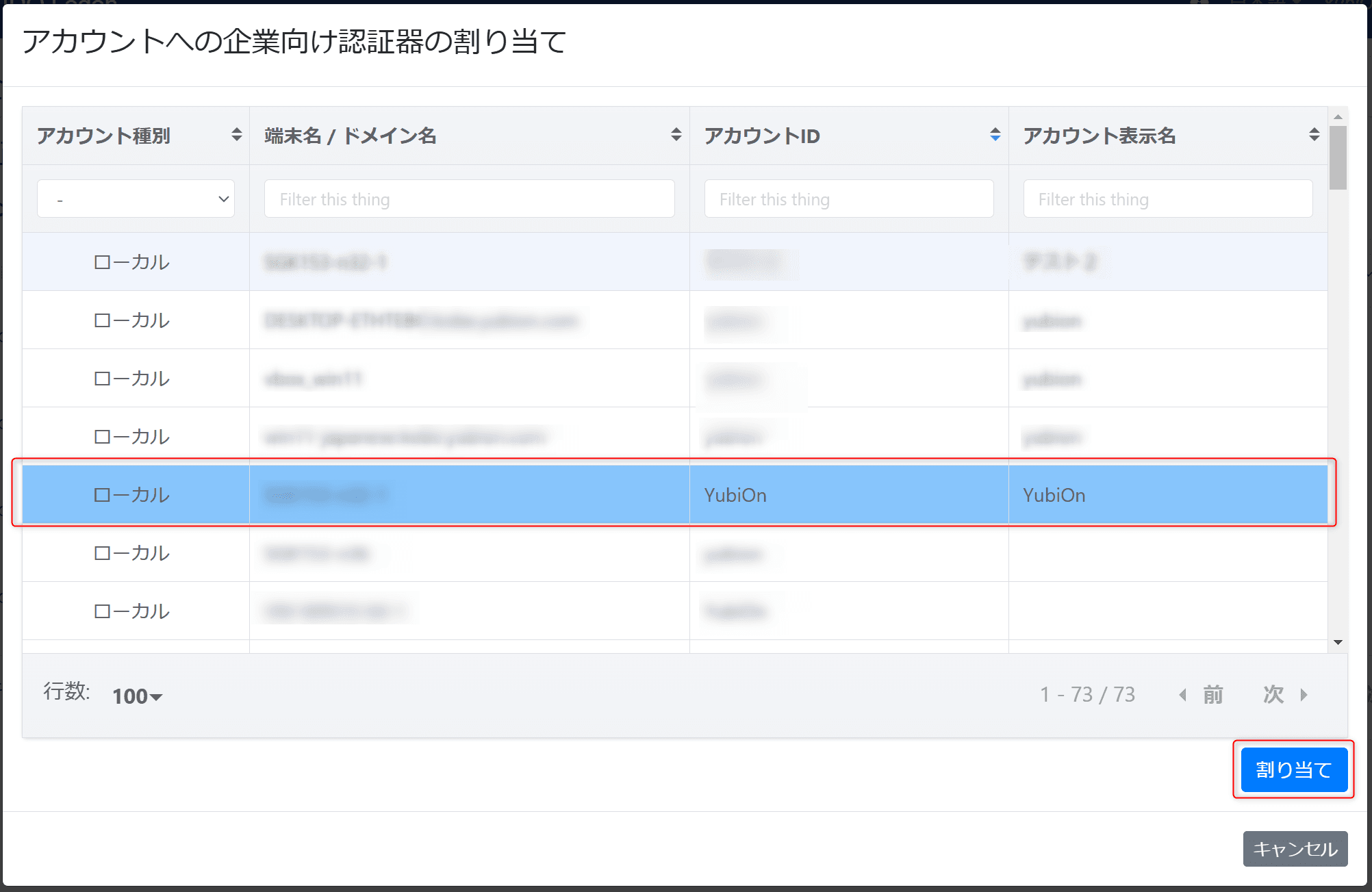
A modal titled “Assign Authenticator to Account” will appear.
A list of accounts within the customer will be displayed. Select the account you want to assign and click the “Assign” button to complete the assignment.
Both local and domain accounts can be selected, but in this case, we will assign it to a local account.
When the assignment is successful, the returned modal will display the account information.
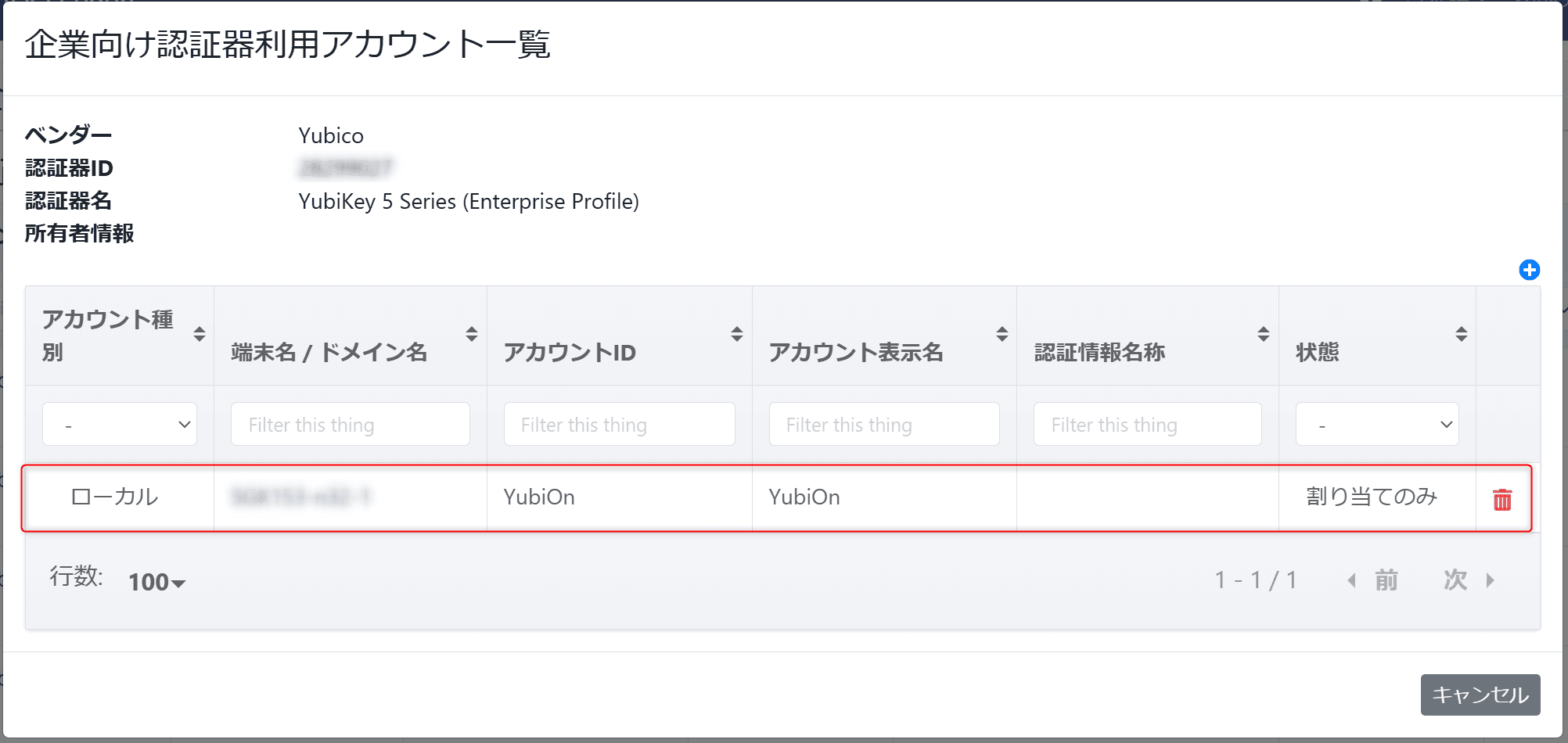
When using passkeys, you must perform the registration process with an actual authenticator.
However, at this point, only the assignment of the authenticator has been completed, and the actual registration of the authenticator has not yet been performed. Therefore, the Status field shows “Assigned.”
Close the modal, and you can also confirm in the authenticator list that the Account field reflects the assigned status.
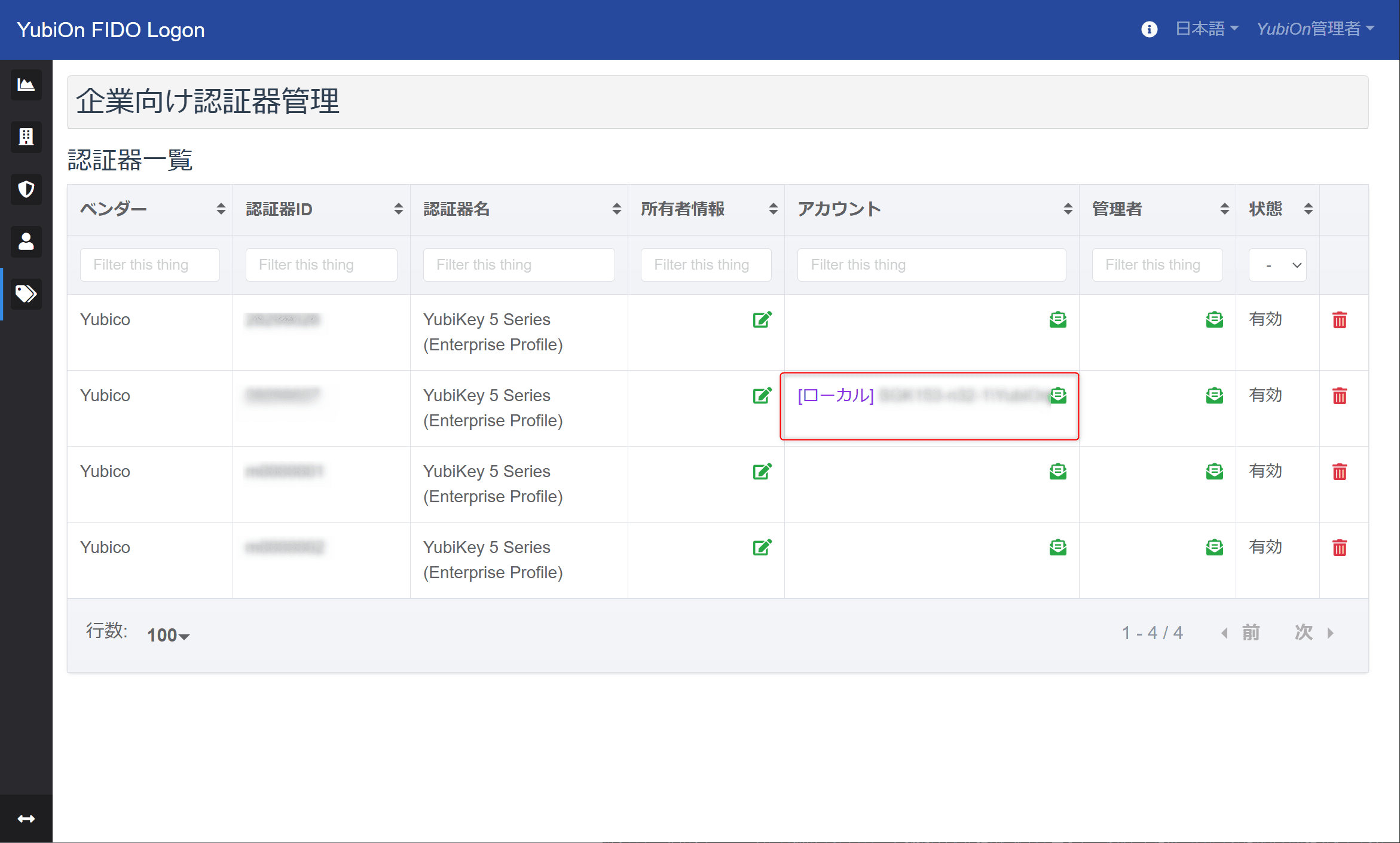
The administrator-side operations are now complete.
Next, let’s look at the end-user operations.
■End-User Operations
3. Register the Authenticator
On a PC with the YubiOn FIDO Logon client software installed, perform the end-user steps.
Start the PC and select the account that was assigned.
Since the authenticator is not yet registered for the first login, enter the Windows password.

After the password is successfully entered, the authenticator registration process will begin.

During registration, a notice is displayed indicating that there are restrictions for enterprise authenticators.
Only the authenticator that was assigned can be registered, so the available authenticator ID is shown.

As a test, try registering with a regular authenticator that is not an enterprise authenticator.
Enter the PIN and touch the authenticator.


The attempt failed because of the restriction.
It is now clear that personal authenticators cannot be used.

Now, re-enter the Windows password, and this time connect the assigned enterprise authenticator.
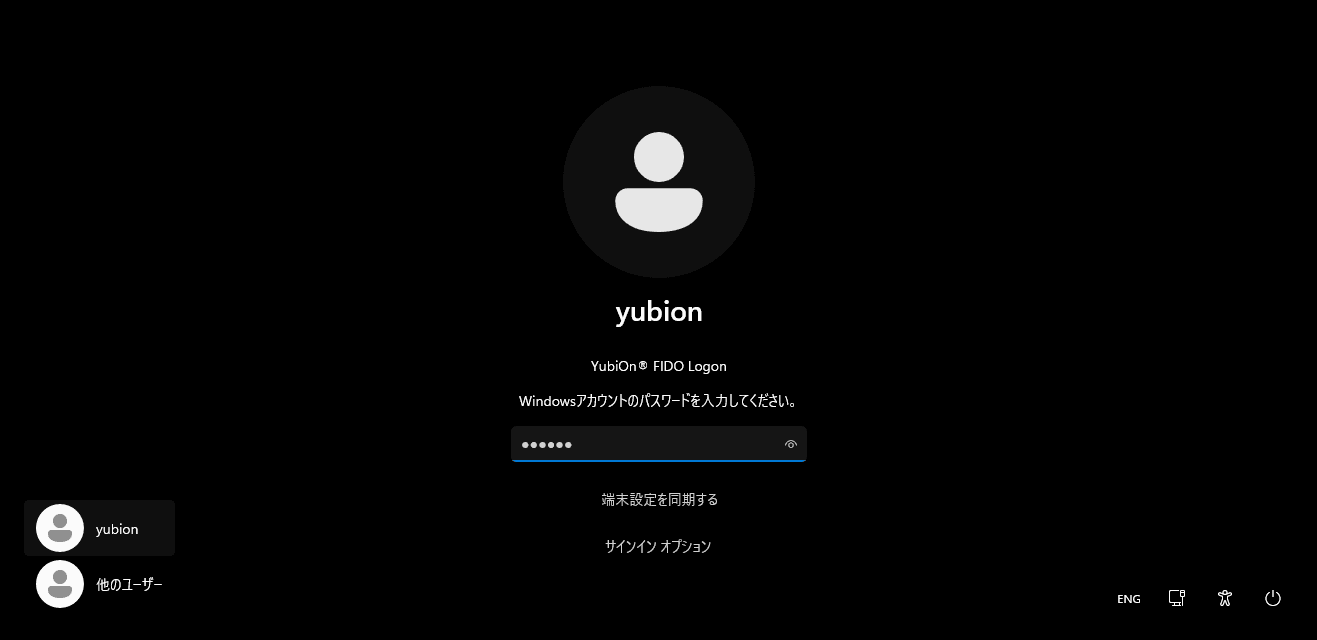


Enter the PIN and touch the authenticator.


This time, the registration was successful.

It has been confirmed that an assigned authenticator can be successfully registered.
4. Perform Logon Authentication
Next, try logging on using the registered authenticator.
Enter the PIN and touch the authenticator.
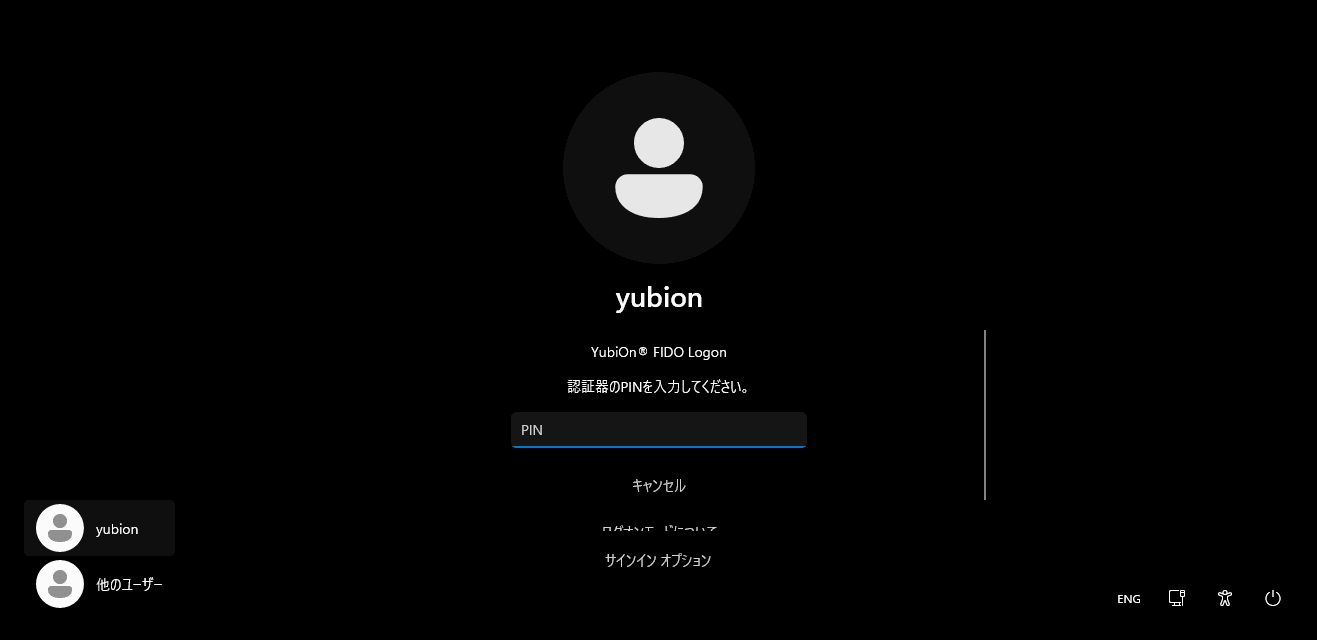

Logon was successful.


Once registration is complete, from the next logon onward, there will be no registration process. You will authenticate using the authenticator to log on.
Aside from the registration restrictions, there is no significant difference compared to a regular authenticator.
■Administrator Operations
5. Check Registration Status
Return to the management web screen and verify the registration status.
Open the Enterprise Authenticator Management screen and click the icon in the Account field for the authenticator that was assigned.
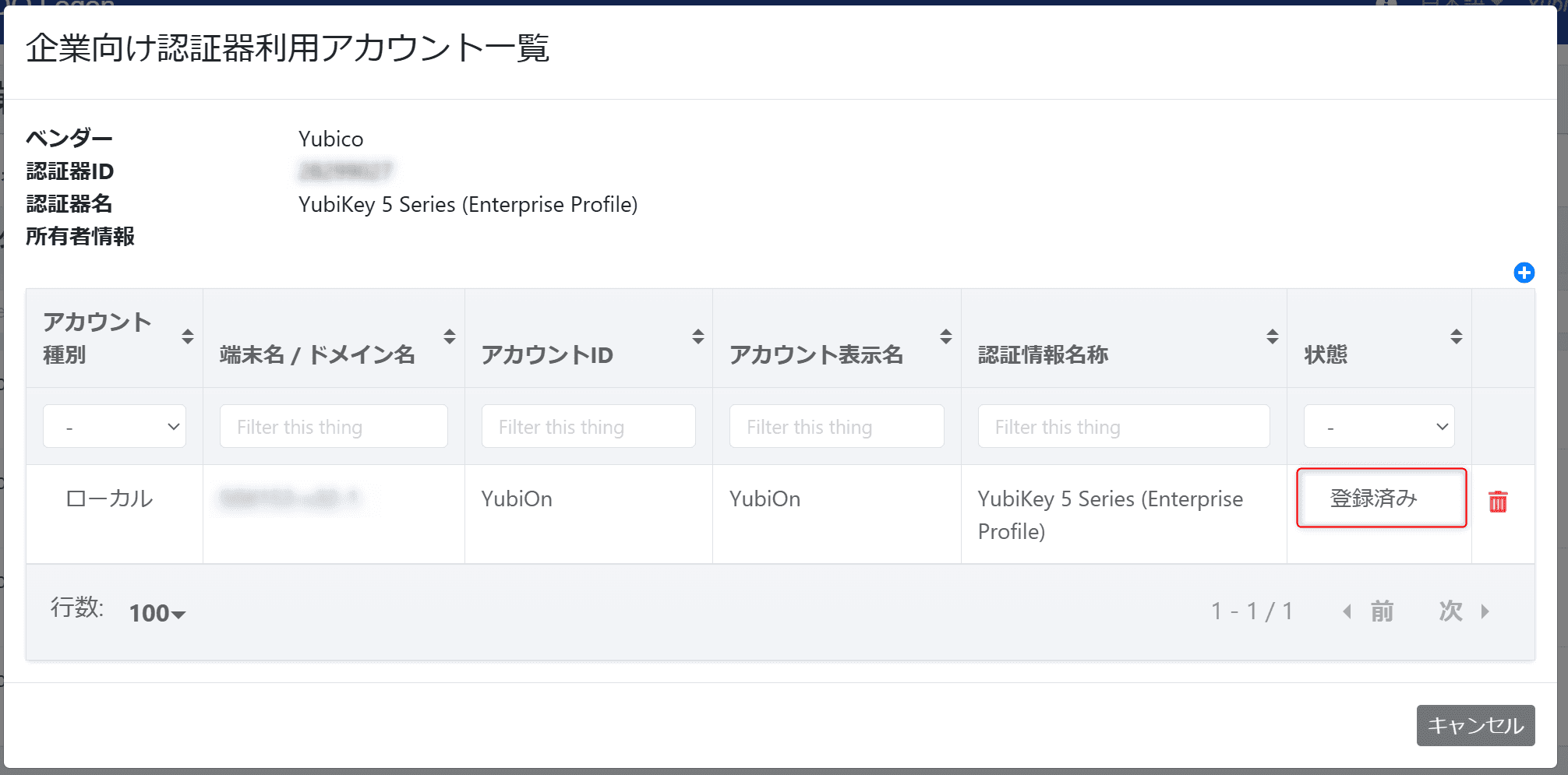
Previously, the status was "Assigned", but since the end user has now registered the authenticator, it shows "Registered".
In this way, the management web screen allows you to check both the assignment status and the registration status of authenticators.
■Summary
Due to the specifications of FIDO authentication, authenticators could not be uniquely identified, and YubiOn FIDO Logon faced the same limitation. However, with the introduction of Enterprise Attestation, it is now possible to uniquely identify and manage authenticators.
The feature introduced here is especially useful for companies that enforce strict device and security policies, such as prohibiting BYOD.
If you are interested, please feel free to contact us.
YubiOn FIDO Logon offers a free version that allows you to try the same features as the paid version for three months.
Even if you do not have an enterprise authenticator, you can start by trying it with a standard authenticator or a smartphone.
■Related Links
[YubiOn FIDO Logon]
[YubiOn FIDO Logon Overview Page]