
Free Tool to Easily Configure Your Security Keys (Windows & Mac Supported)
With phishing-resistant FIDO authentication (passkeys) being adopted by many services, you likely have more opportunities to use FIDO security keys when logging in. However, configuring the key itself—such as setting a PIN or registering fingerprints—varies widely depending on the operating system.
Have you ever experienced any of the following?
- Struggling to find where to configure a PIN on a newly purchased security key
- Wondering why the built-in process on Windows isn't available or easy to find on Mac...
- Forgetting where to view or delete passkeys stored directly on the security key
- Finding it difficult to configure PIN policies in bulk when distributing keys to employees
I faced the same challenges, which led me to develop and freely release "YubiOn SecurityKey Manager," a setup tool designed to solve these issues. I would love for as many people as possible to use it, so let me introduce it here.
What You Can Do with YubiOn SecurityKey Manager
In short, you can manage all your FIDO security key configurations directly within this app.
- Set / Change PIN
- Set Minimum PIN Length
- Force PIN Change on Next Use
- Register / Delete / Rename Fingerprints
- View / Delete Passkeys
- Reset Security Key
- and more
*Some features may not be supported depending on your security key model.
In this post, we will cover how to configure a PIN and register fingerprints.
Environment Used in This Guide
- OS: macOS Tahoe (Apple Silicon)
- Security Keys:
- PIN Type: YubiKey 5 NFC (PIN not set)
- Fingerprint Type: ATKey.Pro (Fingerprints not set)
Downloading and Installing the Tool
You can download the tool below (it is free).
Supported operating systems: Windows 10 (1903 or later) / Windows 11, macOS (Apple Silicon Mac)
https://www.yubion.com/yubion-securitykey-manager
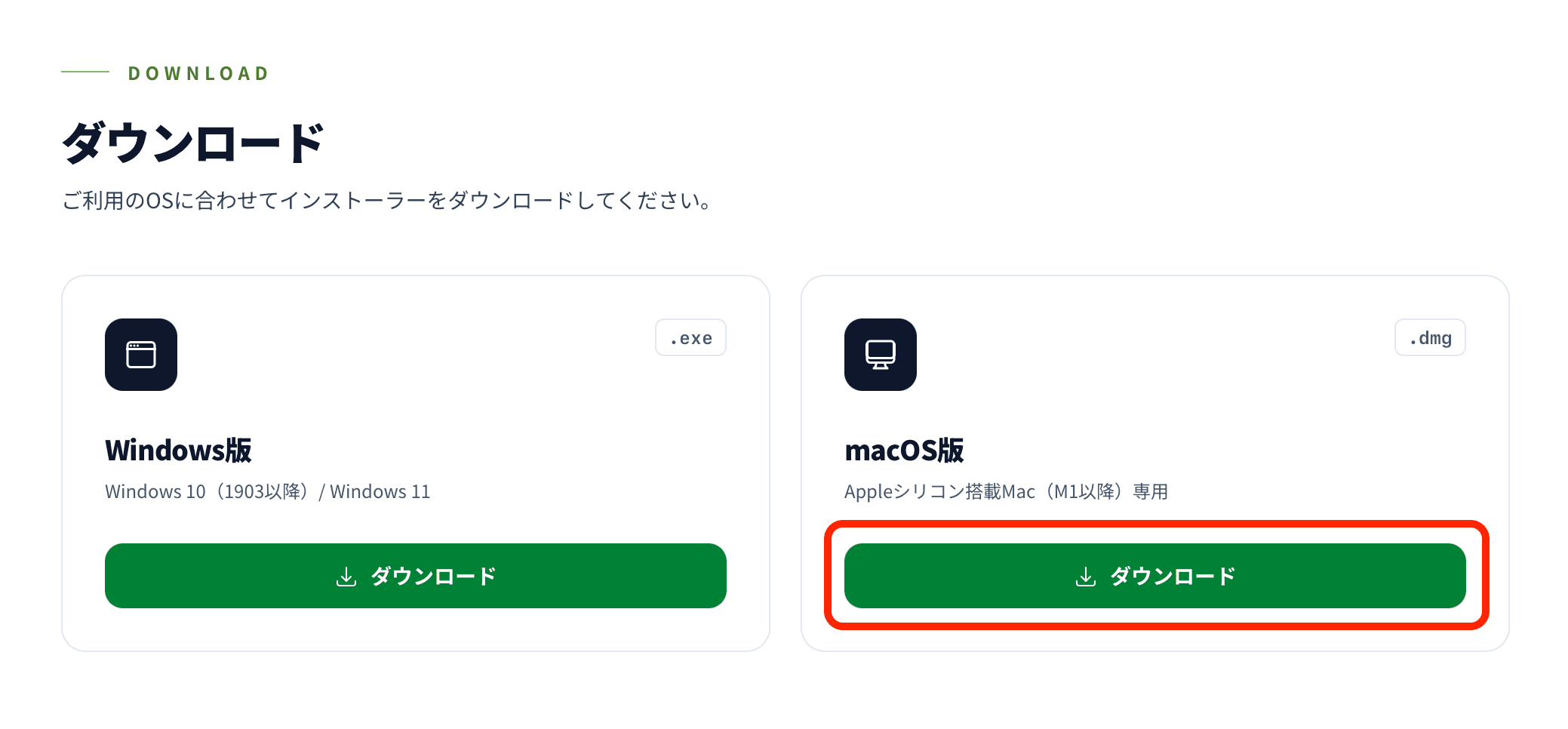
Since we are using a macOS machine this time, click the "Download" button for macOS to get the installer.
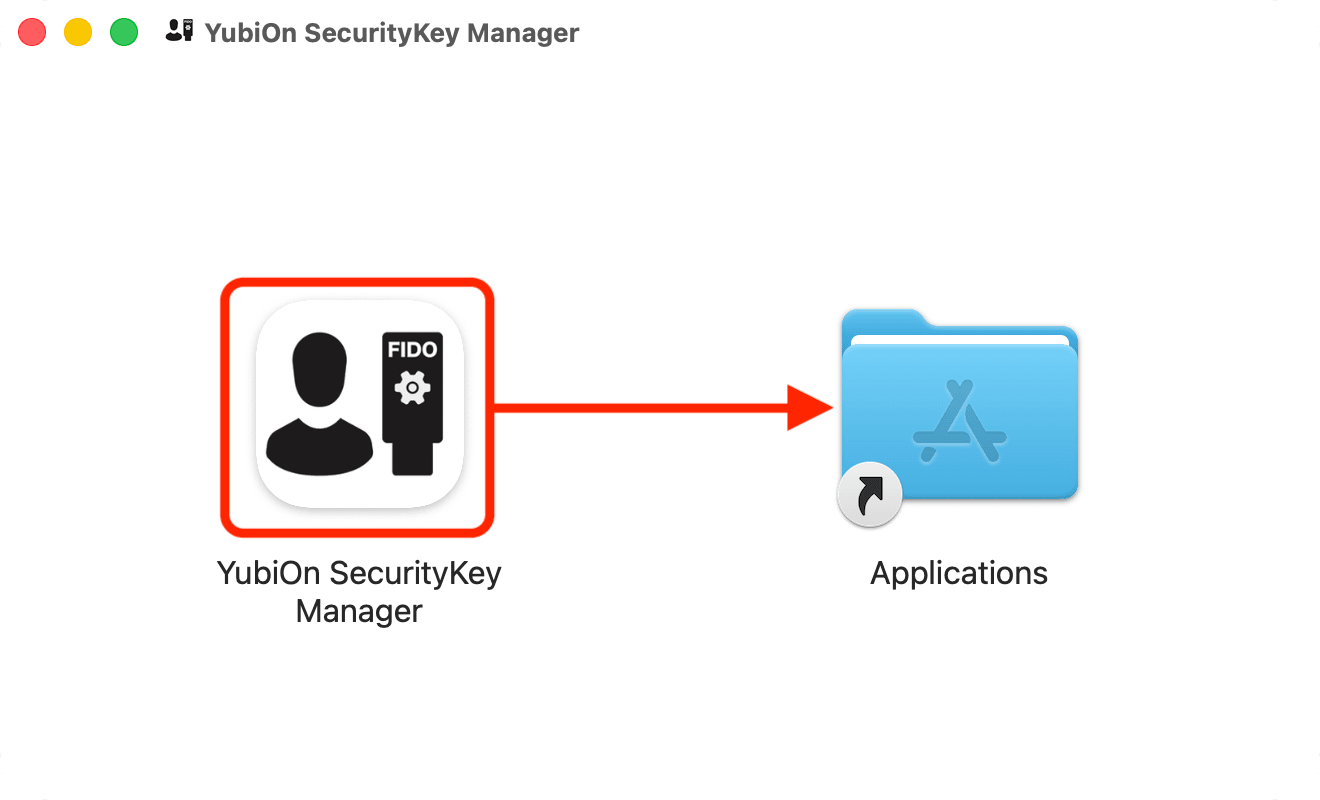
Open the downloaded .dmg file and drag "YubiOn SecurityKey Manager" into the "Applications" folder.
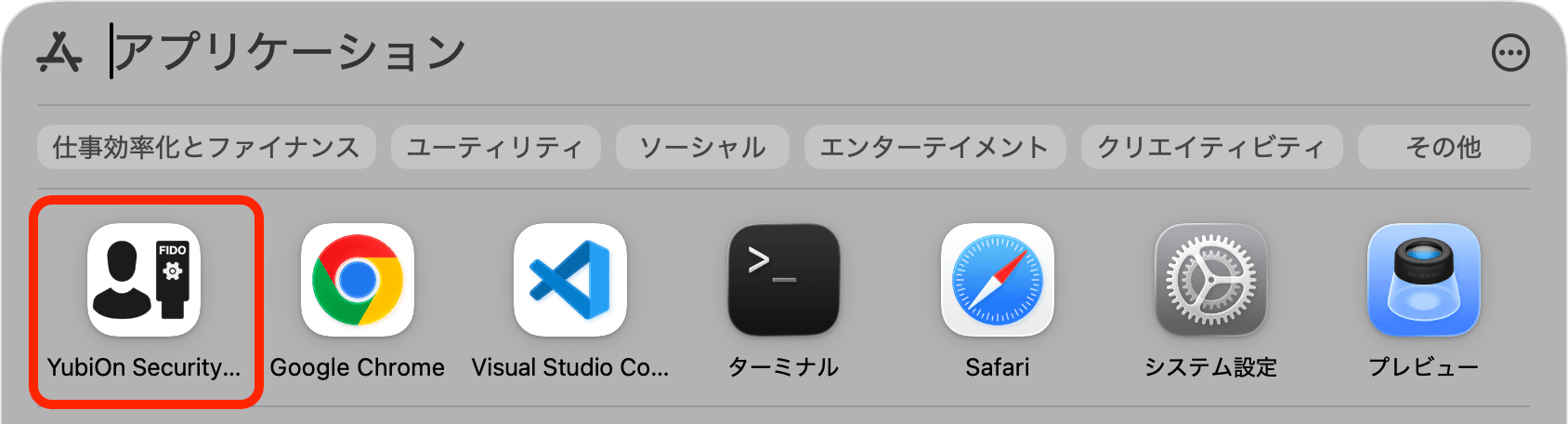
Launch the application.
Click "Open" in the confirmation prompt.
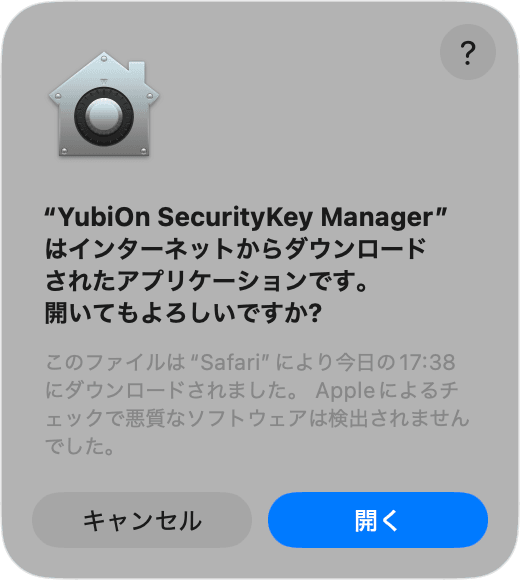
*Depending on your macOS Security & Privacy settings, you may need to allow apps from "App Store and identified developers" or choose "Open Anyway."
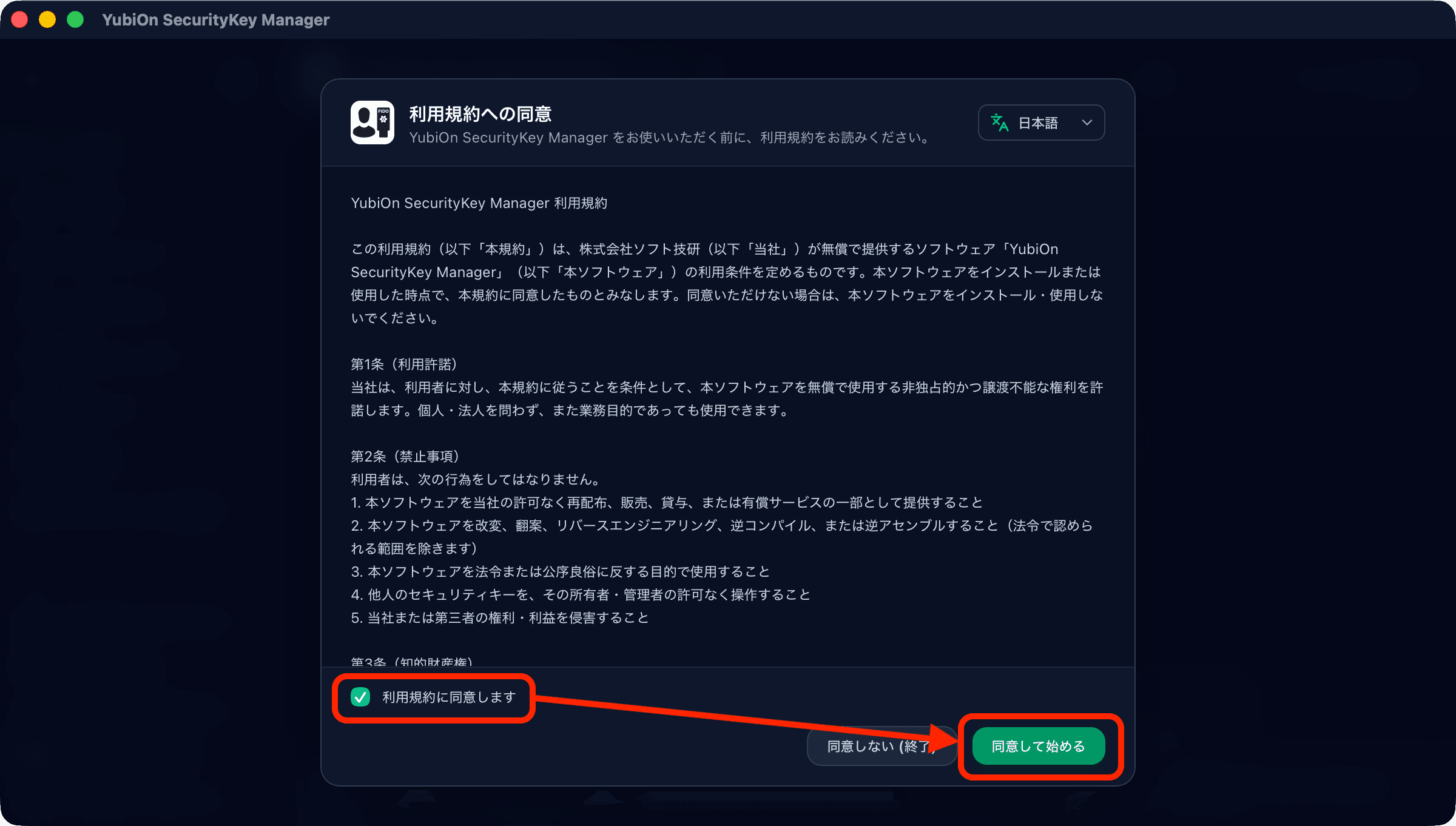
Once the app opens, agree to the Terms of Service.
After retrieving data from the FIDO Alliance, click "Get Started" to begin using the app.
On the first launch, the app fetches the public database from the FIDO Alliance once to display the official key name and certification status (no key information is sent, and the app operates offline afterwards).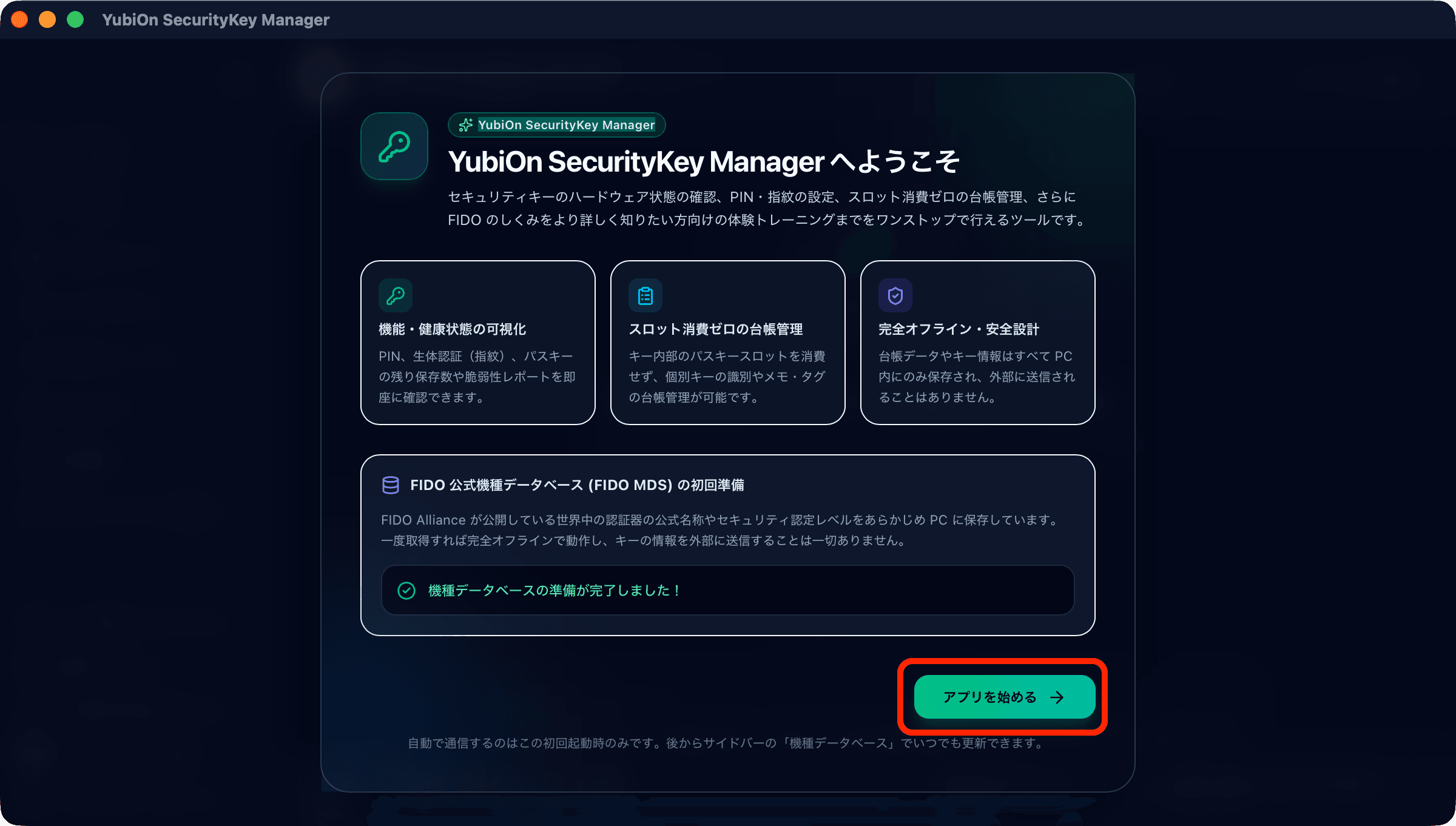
Once started, the following screen will appear (when no key is inserted).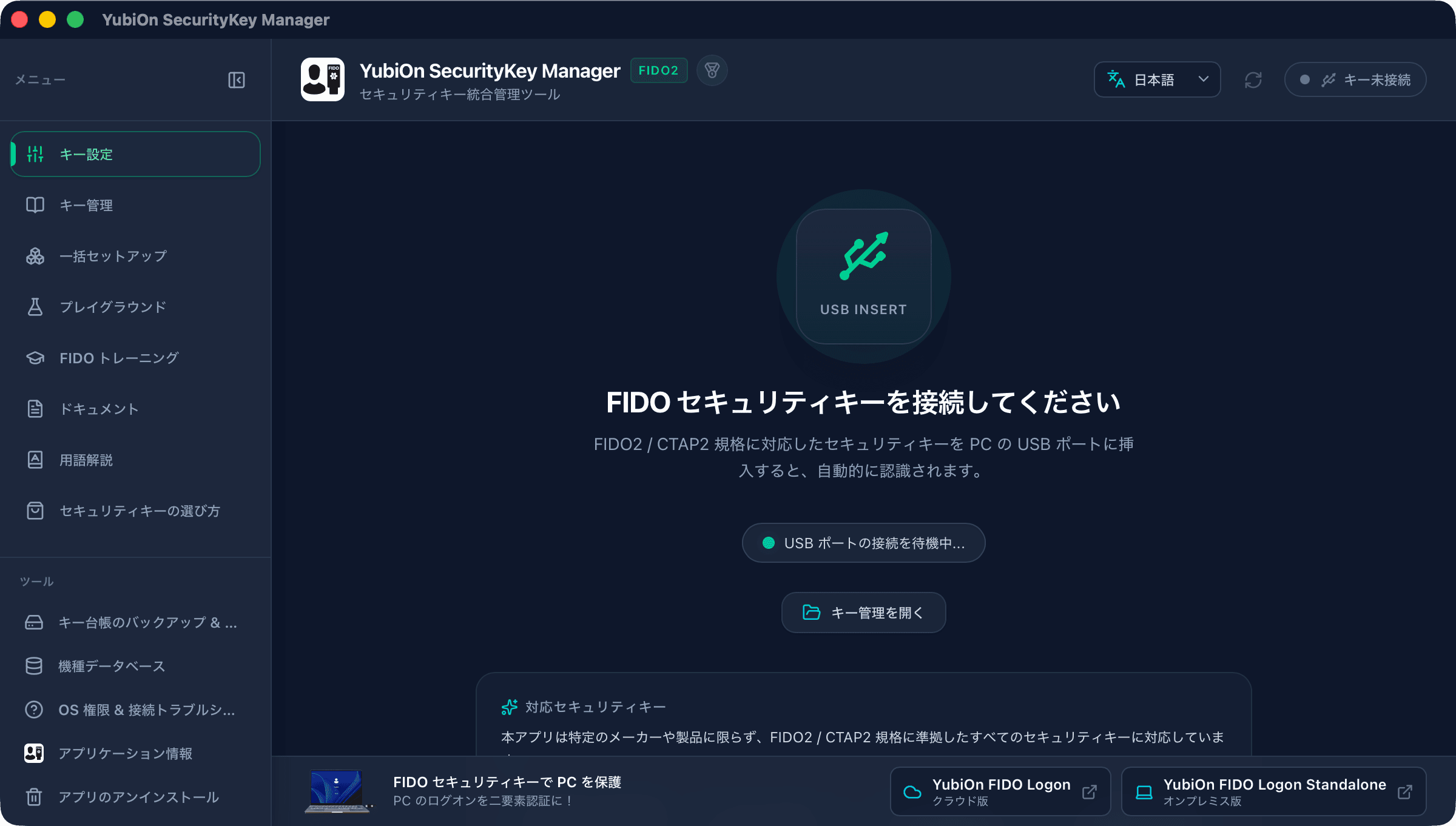
*From the second launch onwards, this screen will open immediately.
Configuring and Changing a PIN
Setting a PIN
Insert a YubiKey without an existing PIN into a USB port while on the key settings screen.
The YubiKey details will appear automatically.
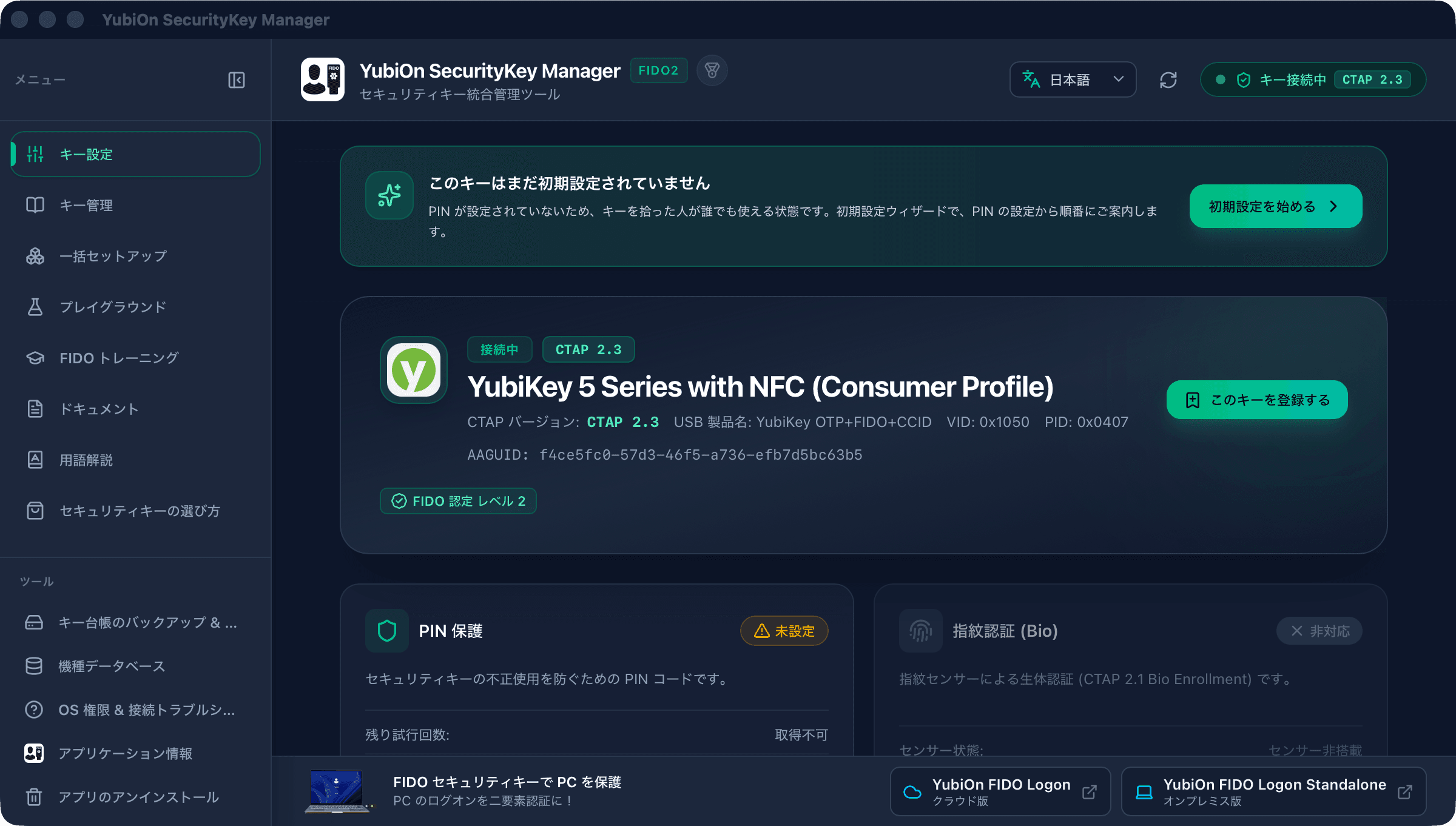
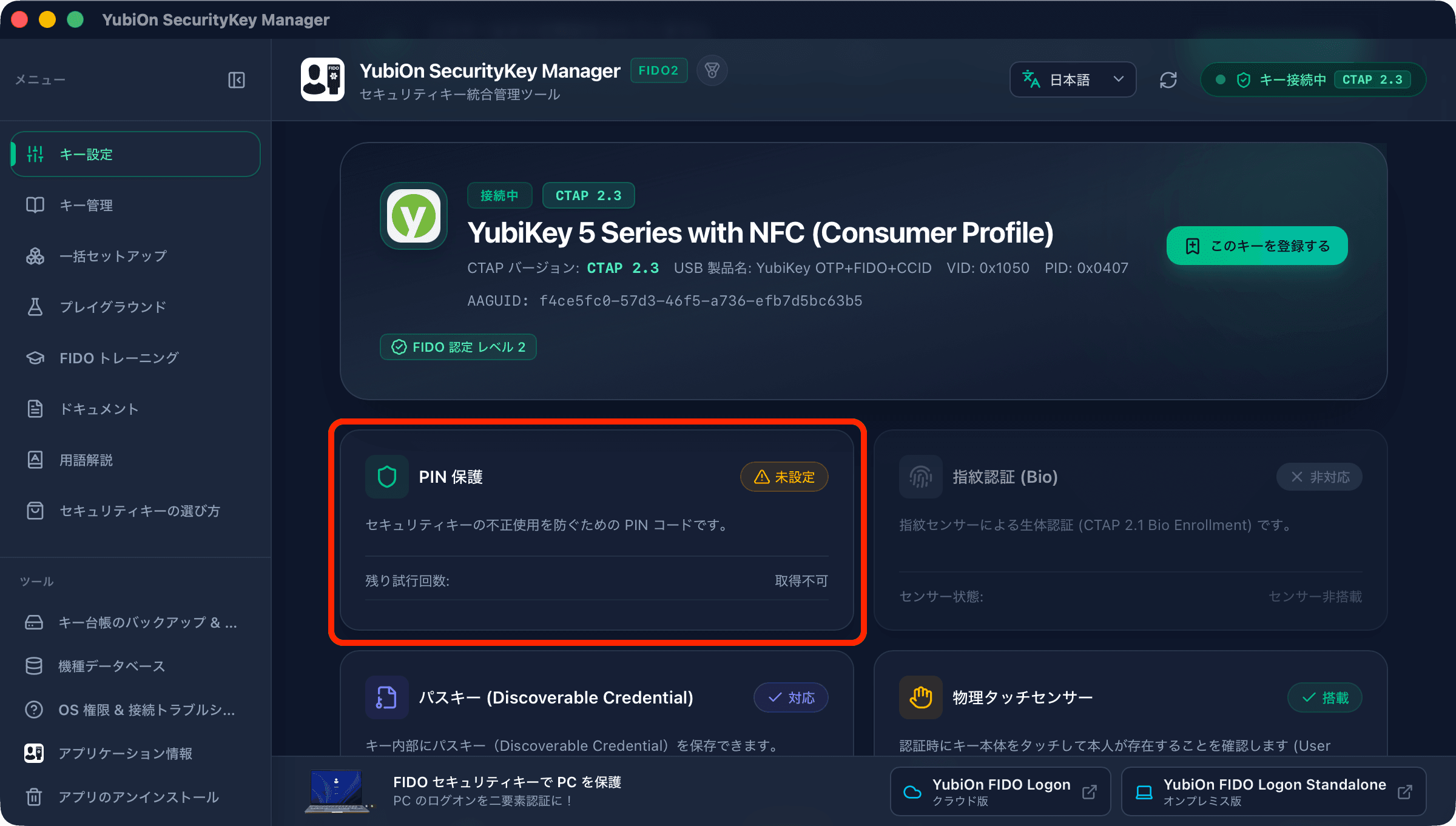
Click "PIN Protection" to set an initial PIN.
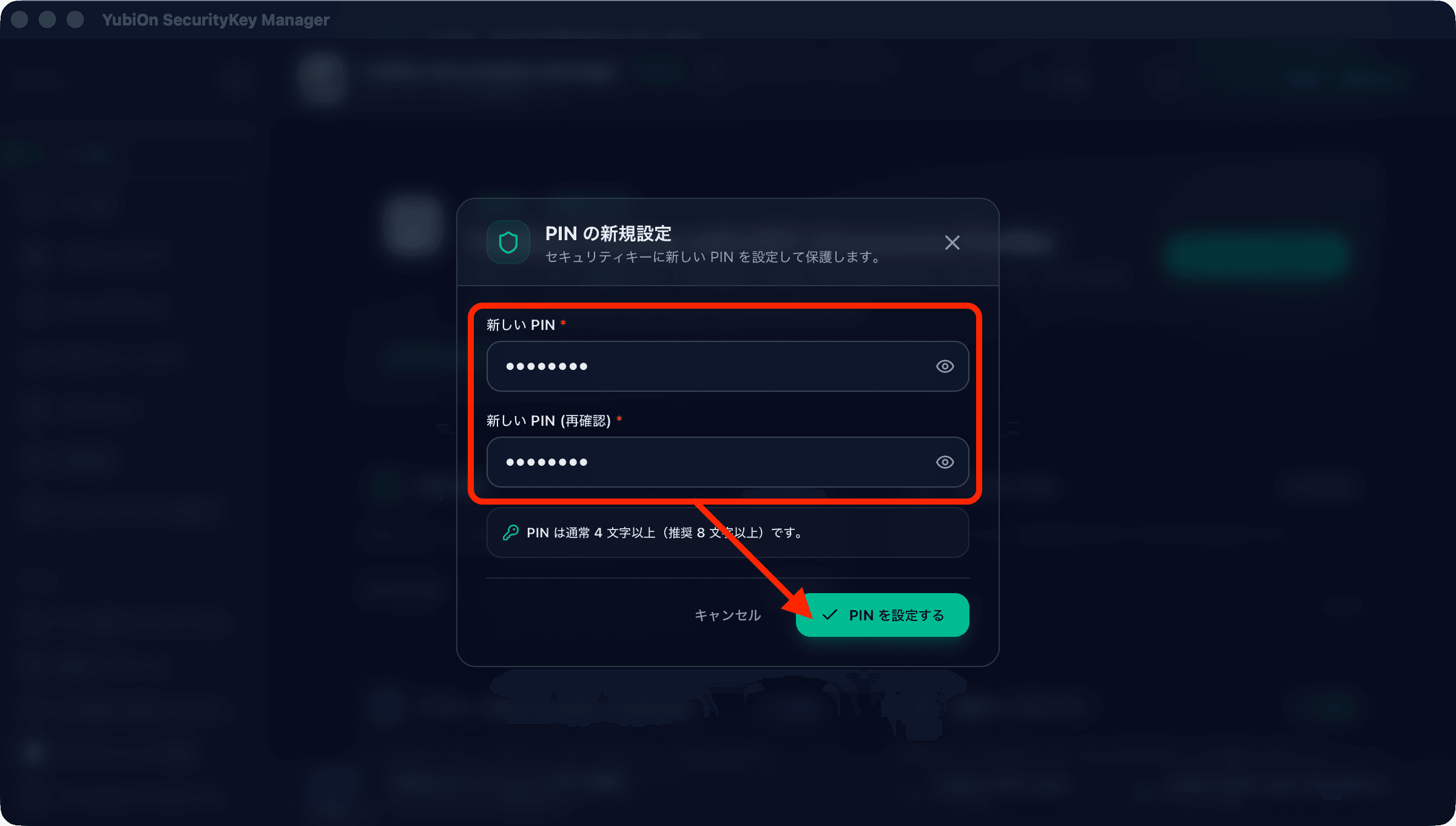
Enter the PIN into both the "New PIN" and "Confirm PIN" fields, then click "Set PIN."
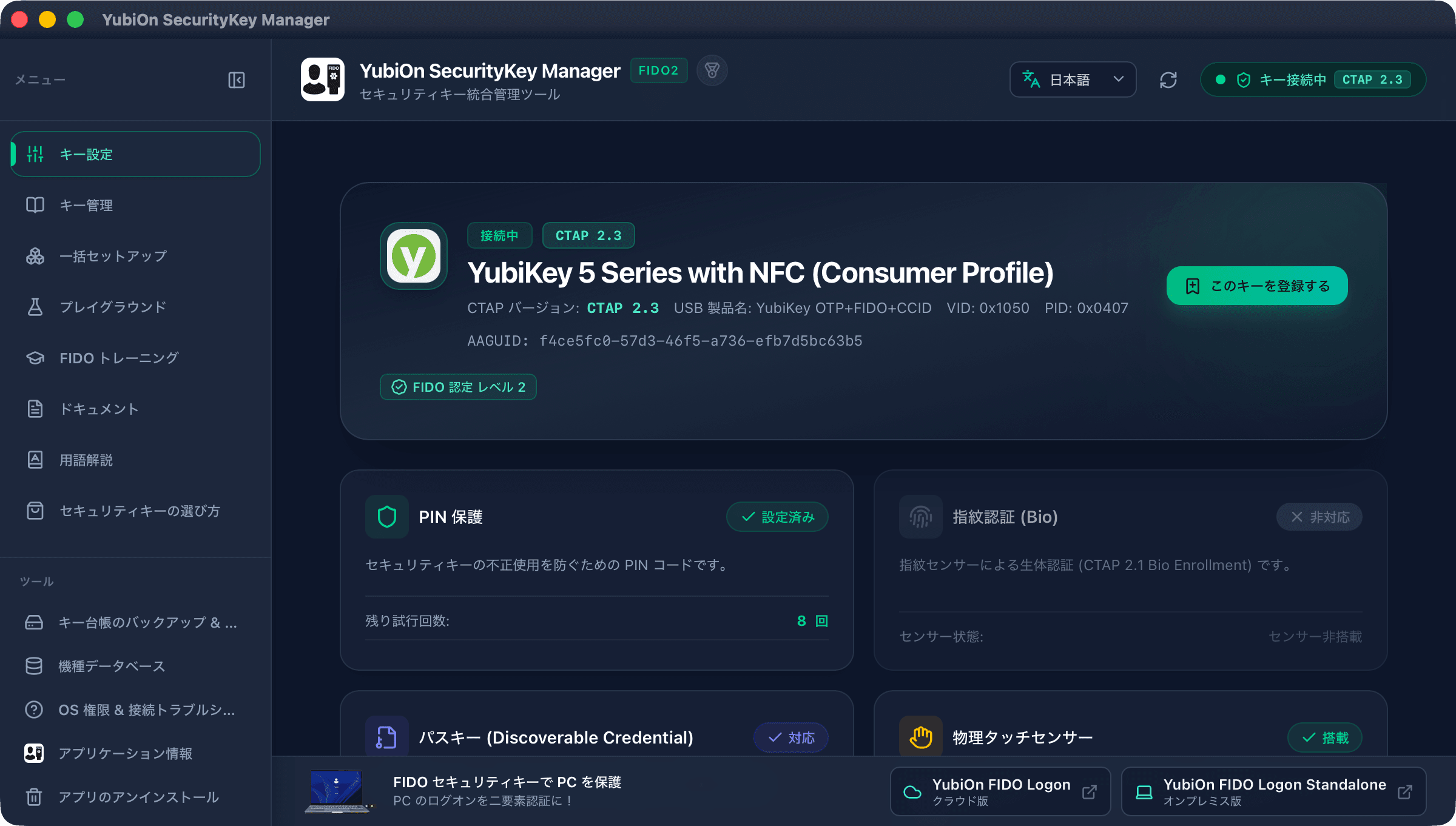
Once configured, the status will change to "Configured."
Changing a PIN
Next, here is how to change a PIN.
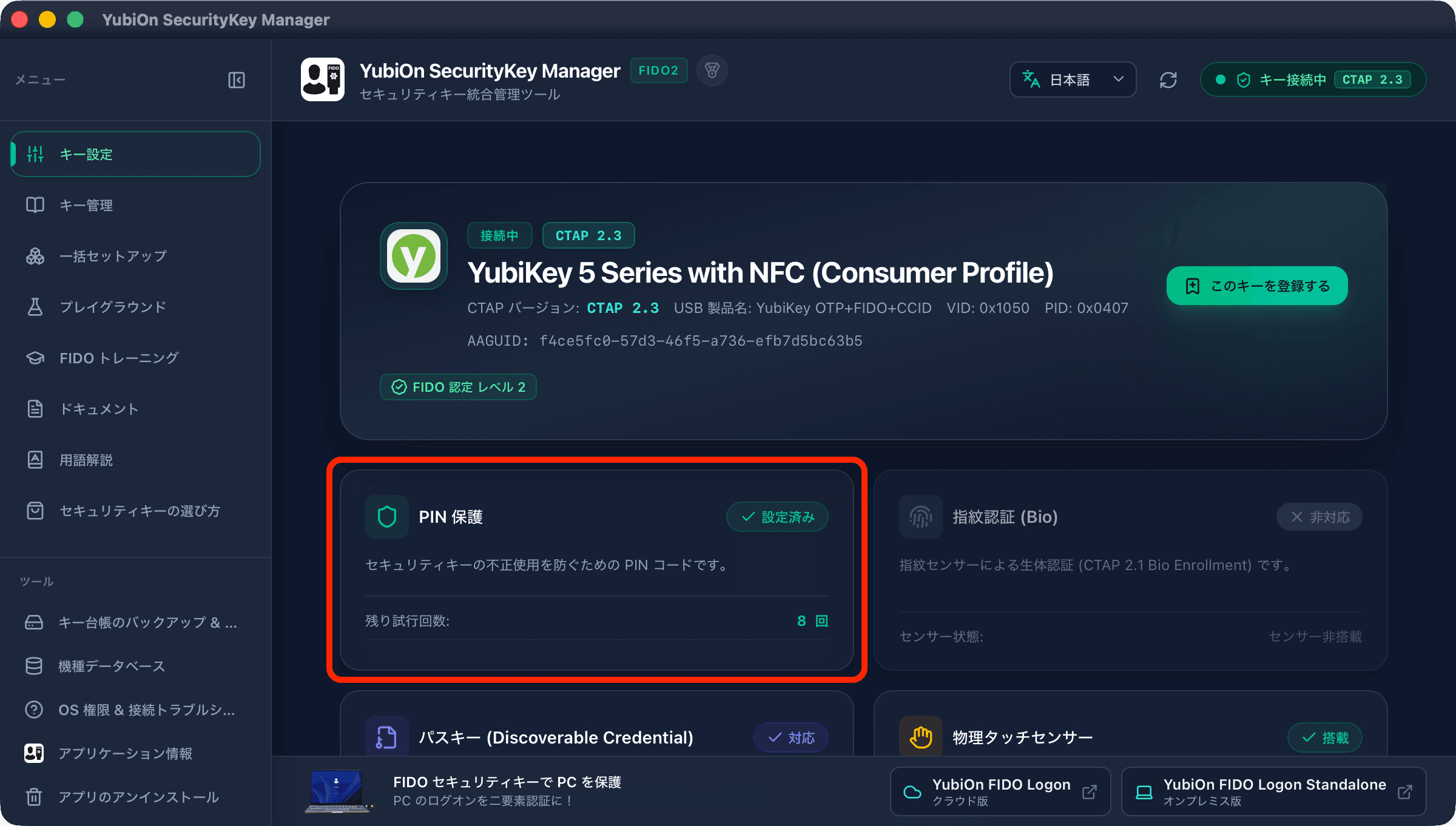
When a PIN has already been set, clicking "PIN Protection" will open the PIN change screen.
Enter the PIN into the "Current PIN," "New PIN," and "Confirm PIN" fields, then click "Change PIN."
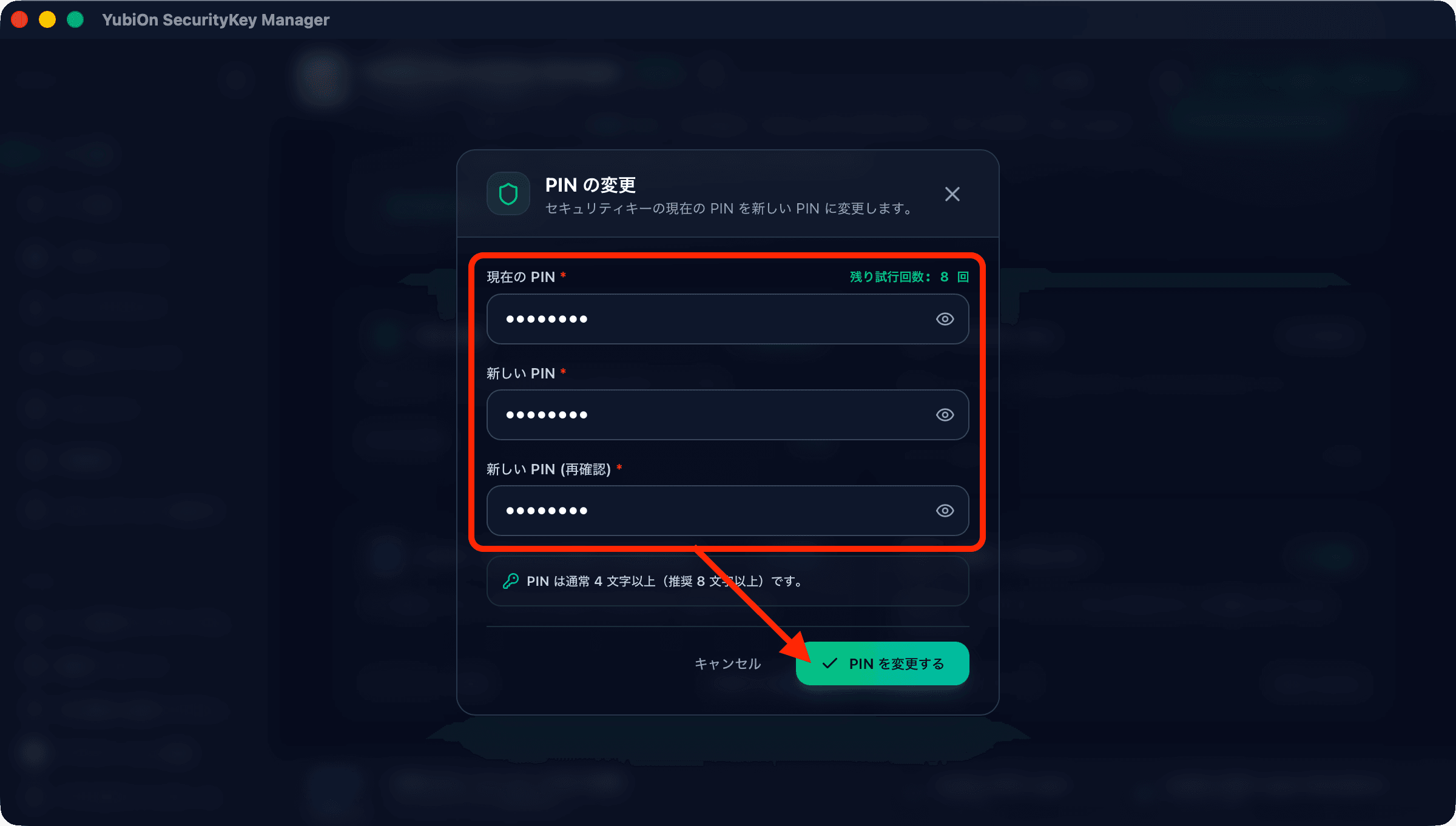
Once the PIN is changed successfully, you will be returned to the main key settings screen.
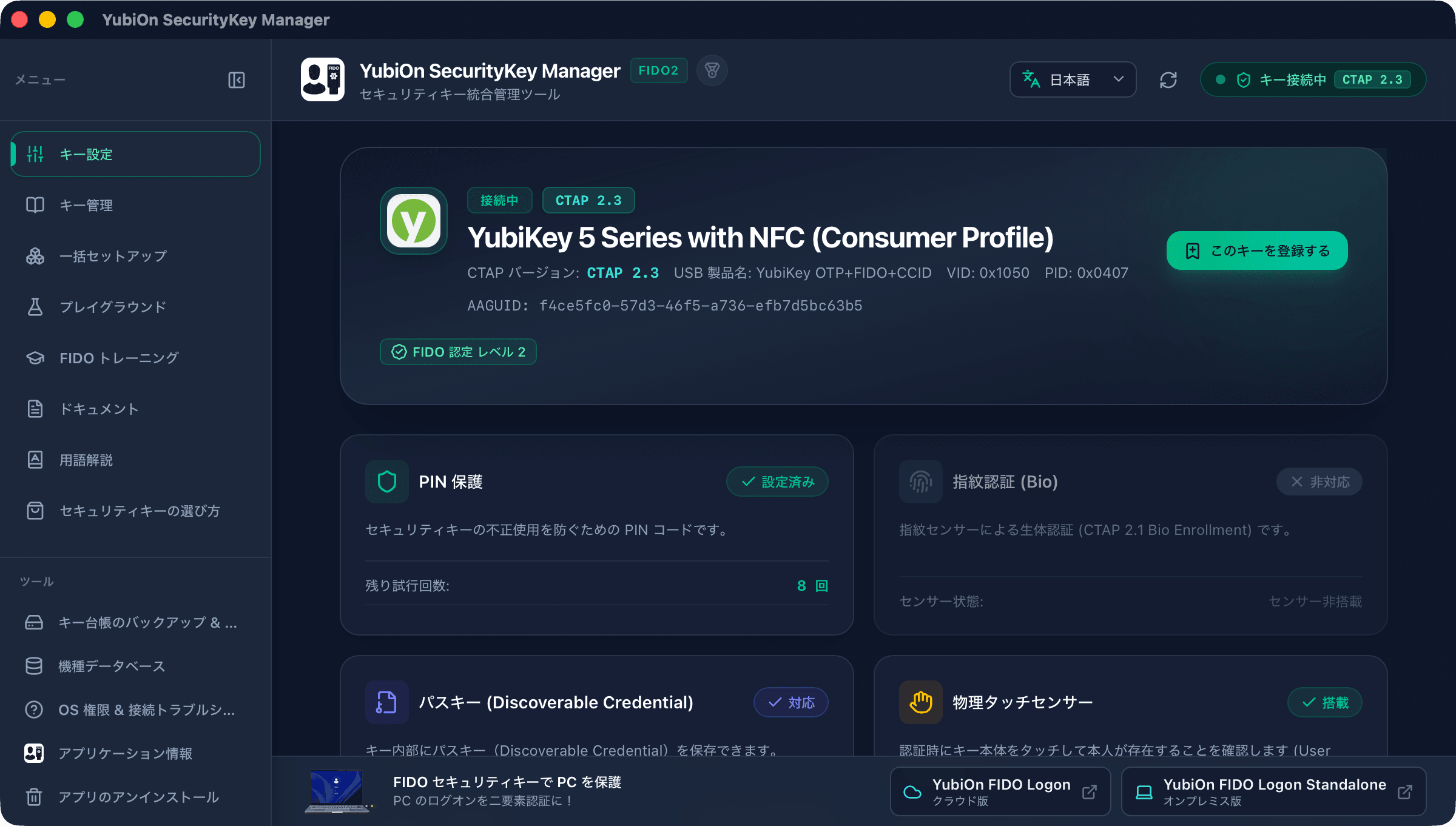
How to Configure Fingerprints
Insert a biometric security key into your USB port.
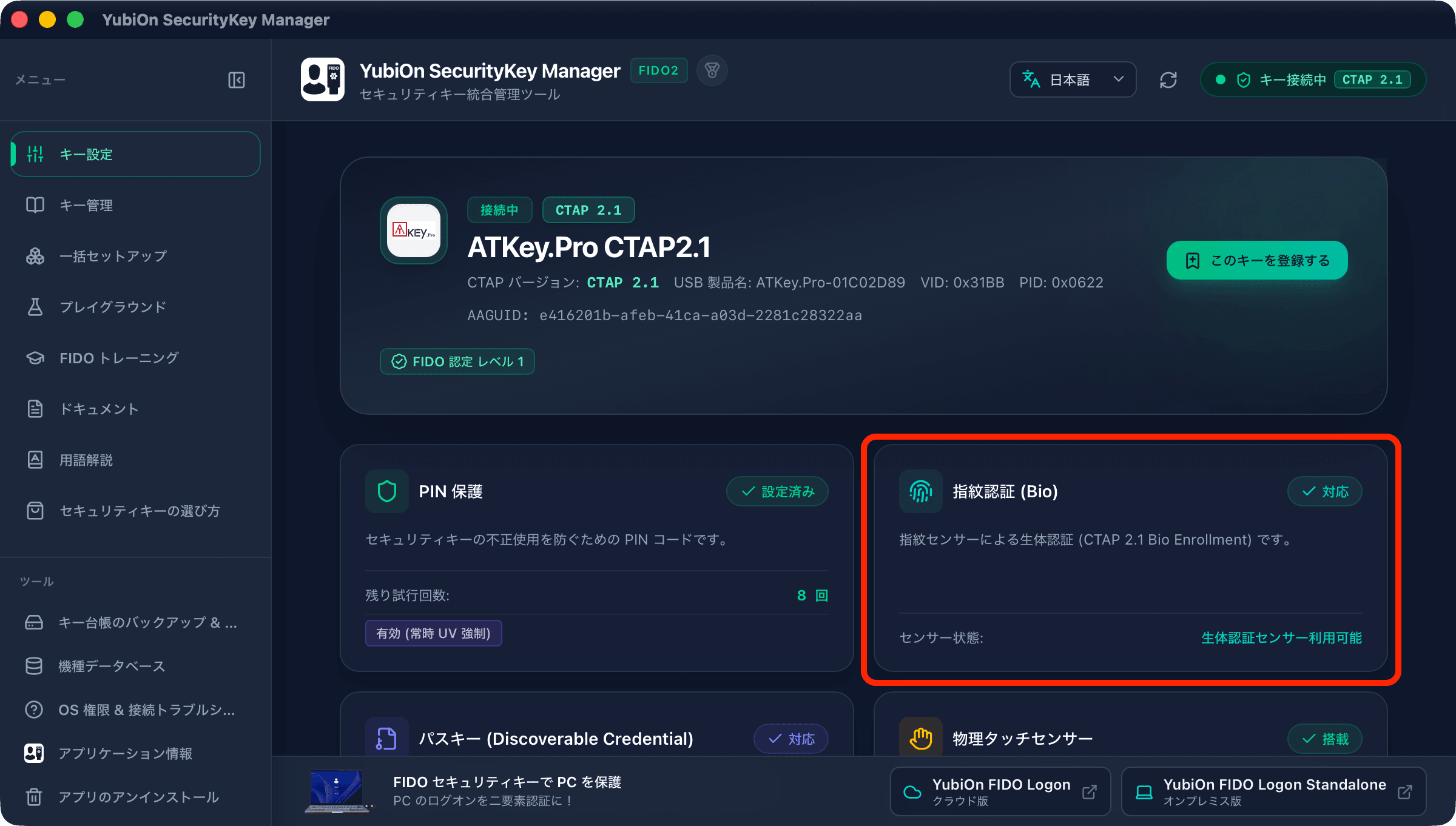
In this example, we will use an "ATKey.Pro" that already has a PIN configured.
To set up fingerprints on a biometric-enabled key, click "Fingerprint Authentication (Bio)."
Enter the "PIN Code" and click "Unlock and Load."
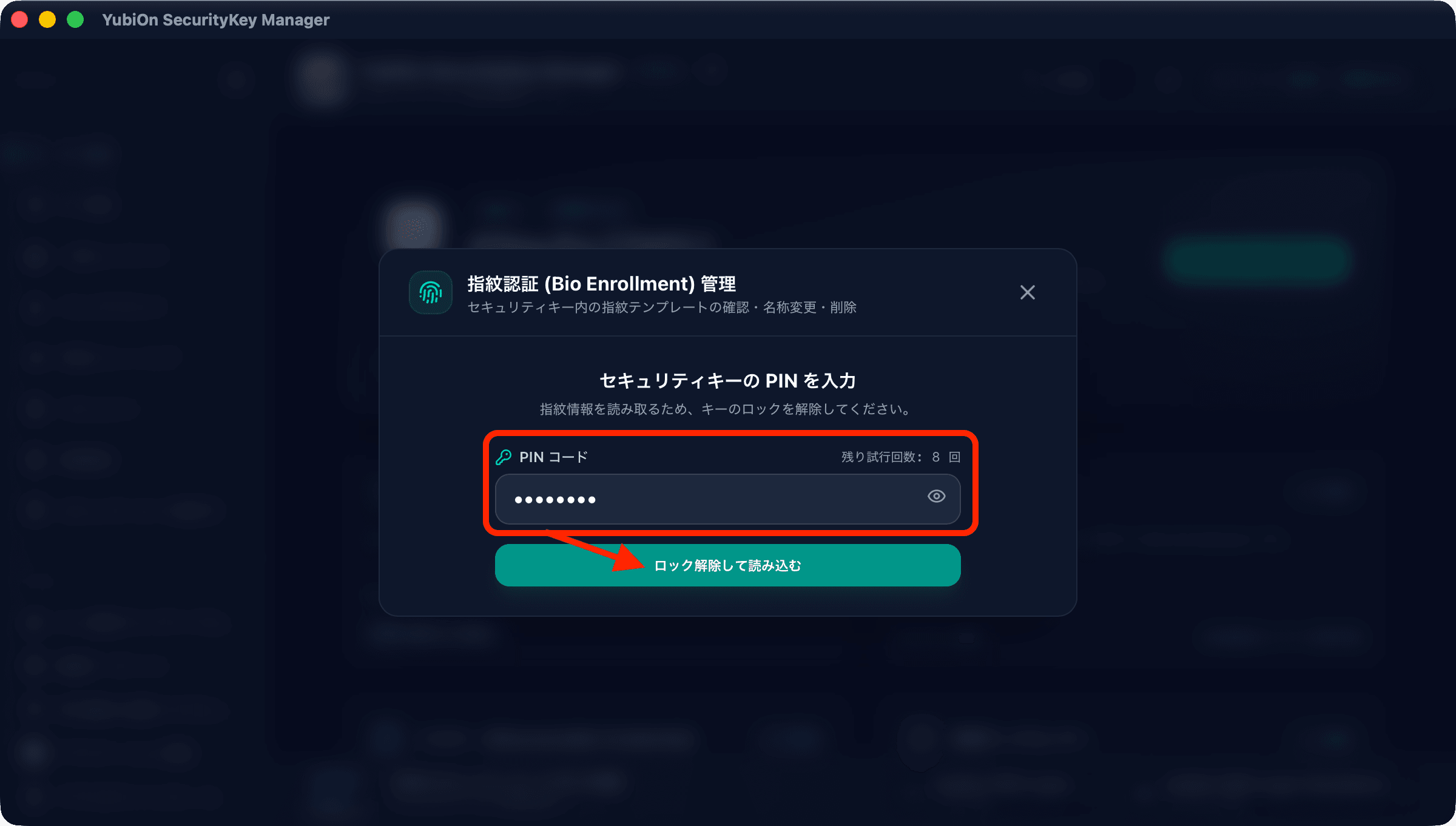
The fingerprint management screen will open.
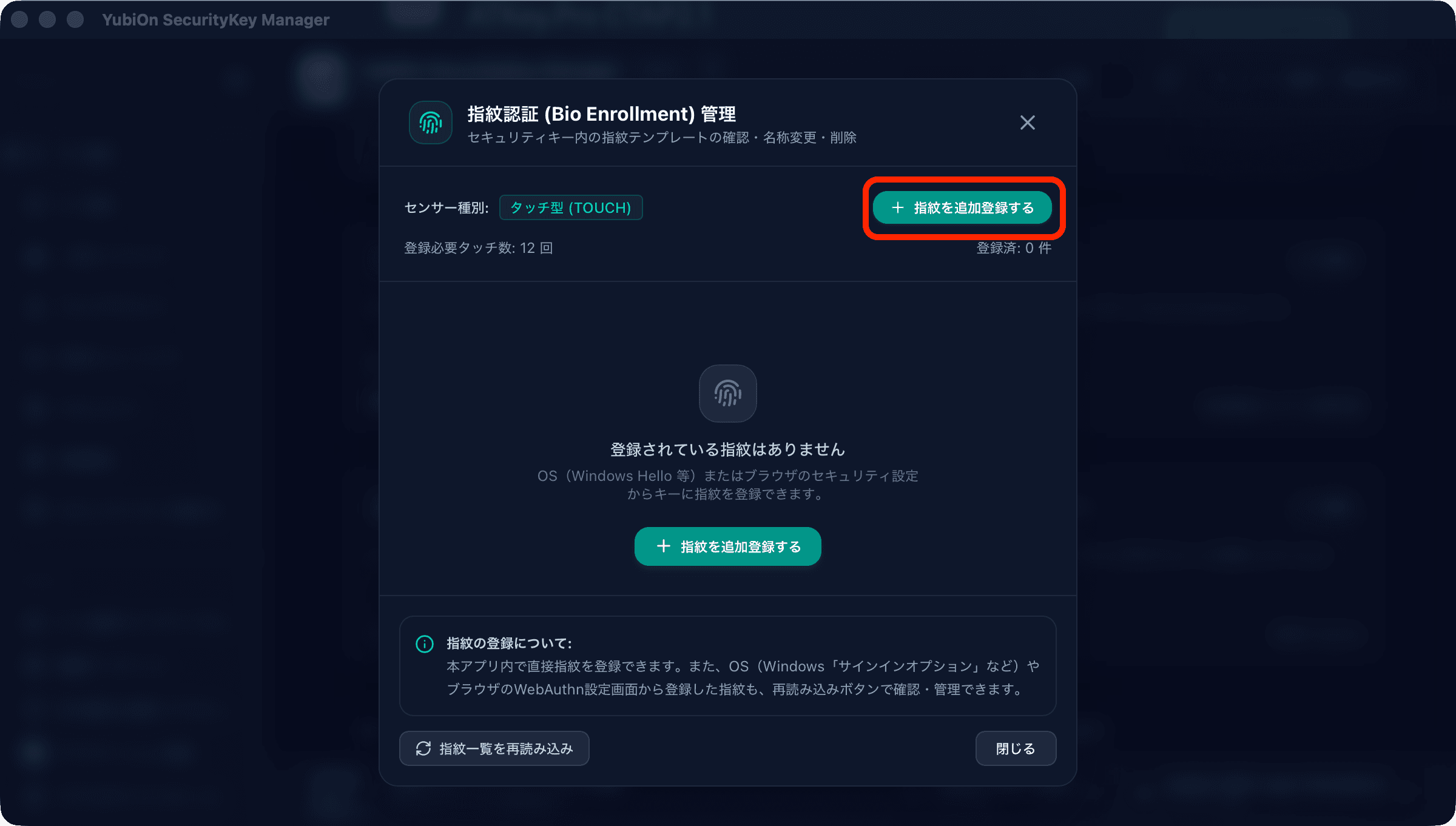
Since no fingerprints have been enrolled yet, click "Add Fingerprint" in the top right corner.
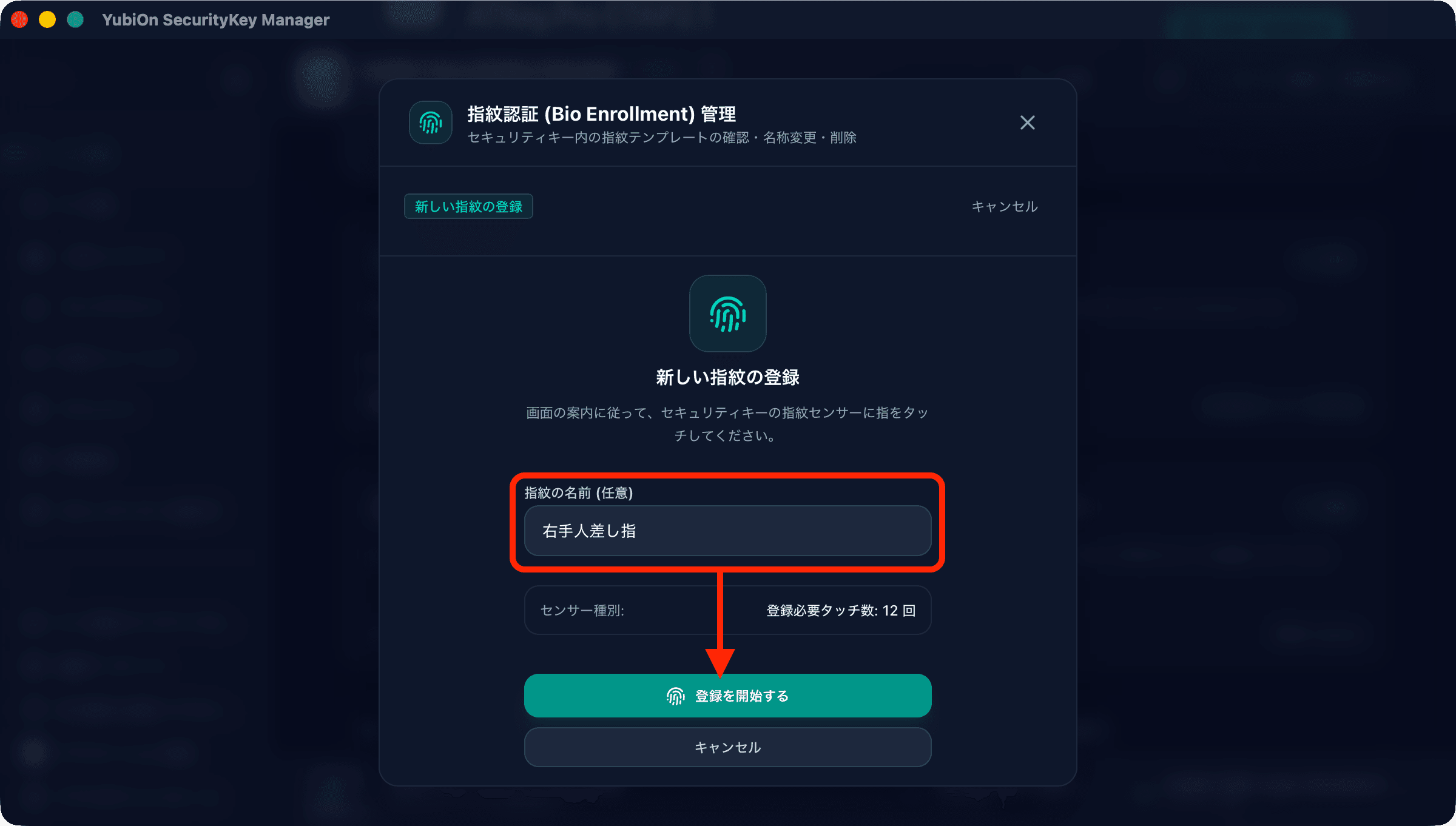
Enter a name for the fingerprint and click "Start Enrollment."
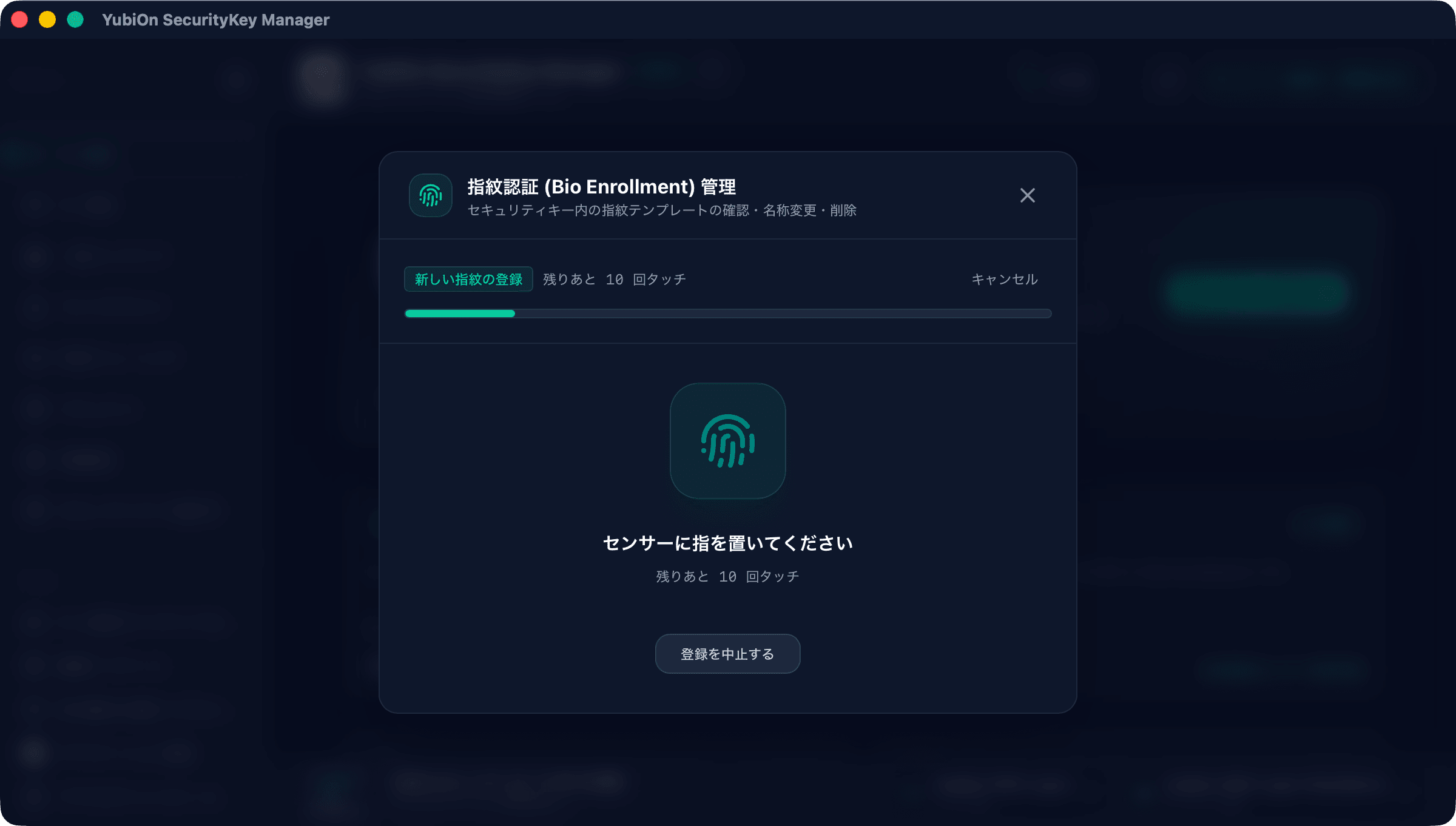
Follow the on-screen instructions to register your fingerprint.
Repeatedly touch and lift your finger from the key sensor, and the progress bar will advance.
Fingerprint enrollment is complete once the list of enrolled fingerprints is displayed.
We recommend registering multiple fingers in case of emergencies.
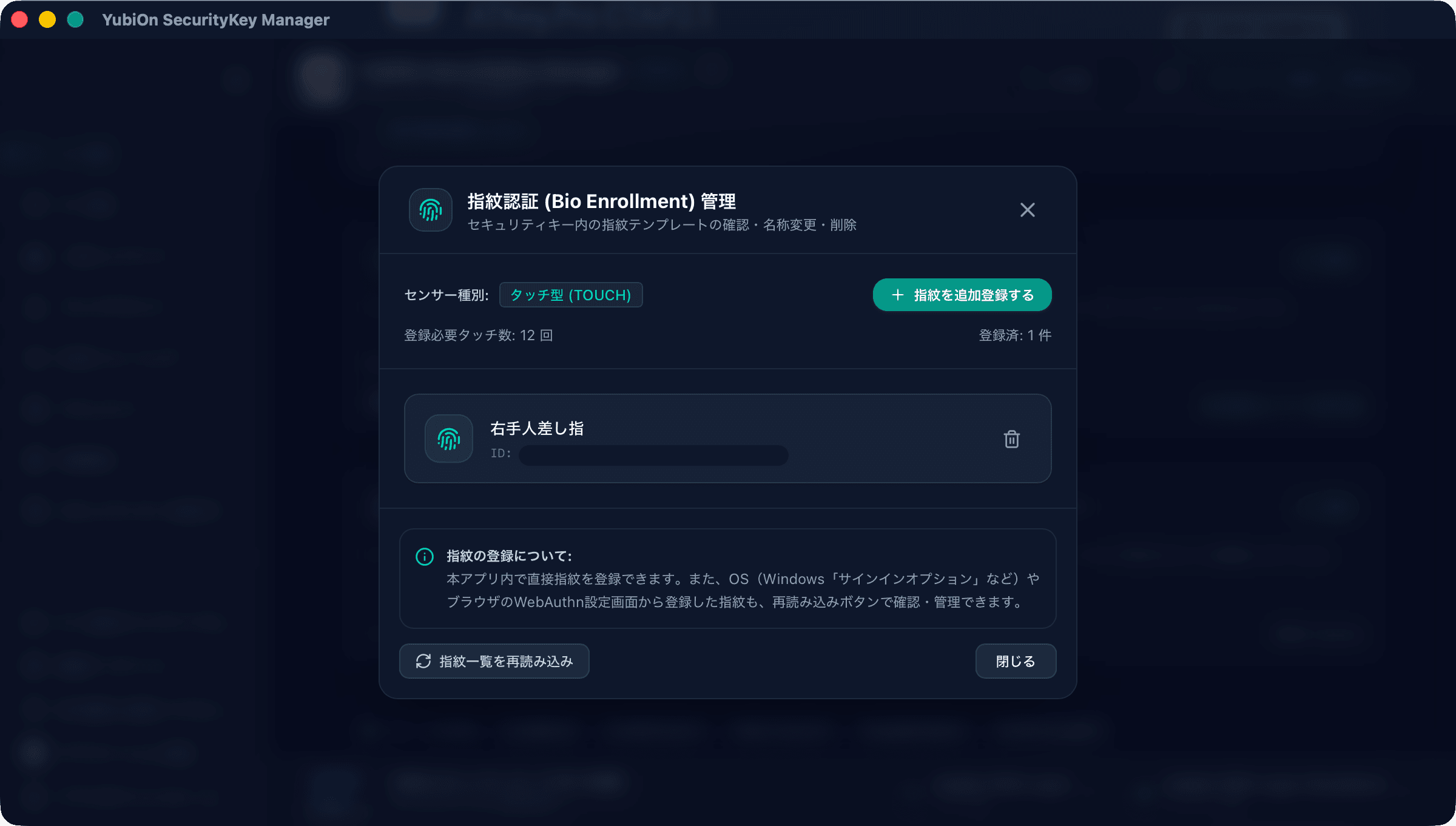
Once finished, you can close this window.
Conclusion
In addition to the PIN and fingerprint setup covered here, there are many other capabilities available that we hope to introduce in upcoming posts. Many Mac users struggle with managing security keys because native macOS tools are limited, requiring them to search for instructions each time. We hope this tool relieves that frustration.
As a side note, this utility came to life during testing of the macOS edition of "YubiOn FIDO Logon," a two-factor authentication service for endpoints created by my colleague. We were constantly resetting keys and updating settings during validation, and having to reconfigure everything via vendor CLI tools proved tedious—which inspired us to build this app.
If you are interested in using your security key for Mac two-factor authentication, be sure to check out my colleague's article: Introduction Guide to YubiOn FIDO Logon for macOS.
Download YubiOn SecurityKey Manager:
https://www.yubion.com/yubion-securitykey-manager
We are an authorized distributor of FIDO security keys.
If you would like to purchase one, please visit our online store below.
Online Store:
https://ykey.yubion.com/